Let’s be real: nothing ruins a gaming session faster than a sudden screen freeze right when you’re about to win. I’ve spent way too many nights screaming at my TV because my character stopped moving for a split second.
If you’re tired of losing matches because of your hardware instead of your skills, I’ve got you. I’m going to show you how I finally stopped the stuttering and got my console running smooth again.
When Every Second Counts and Your Console Won't Cooperate
You're in the middle of an intense match. Your reflexes are sharp. Your timing is perfect. Then the screen freezes for half a second, and everything falls apart.
That tiny delay cost you the round. Again.
If this sounds familiar, you're not alone. Console lag is one of the most frustrating problems gamers deal with, and it doesn't matter how skilled you are if your hardware keeps holding you back.
Why Most People Never Actually Fix the Problem
Here's the thing nobody tells you: most lag advice online is either outdated or just plain wrong. People try random fixes without understanding what's actually causing the issue, which means they waste hours and still end up frustrated.
Common mistakes people make:
- Blaming their internet speed without checking other factors
- Restarting the console repeatedly, hoping it magically fixes itself
- Buying new equipment before testing simple solutions first
- Ignoring background downloads and updates running silently
- Never checking if their console software is outdated
These mistakes don't just waste time. They waste money too, since people often buy new routers or consoles when the real fix was something simple all along.
You're Closer to a Fix Than You Think
The good news is that most lag problems come down to just a handful of root causes. Once you know what they are, fixing them becomes a lot less overwhelming.
In this guide, you'll learn exactly how to diagnose what's causing your lag and walk through real, practical steps to fix it. No guesswork. No expensive upgrades unless they're truly necessary.
Let's get your console running the way it should.

🎮 The Lag-Free Speed Run (Quick Checklist)
Don't have time to read the whole guide? Here is my 'Quick Fix' list to get you back in the game:
- Plug it in: Switch from Wi-Fi to a Cat6 Ethernet cable immediately.
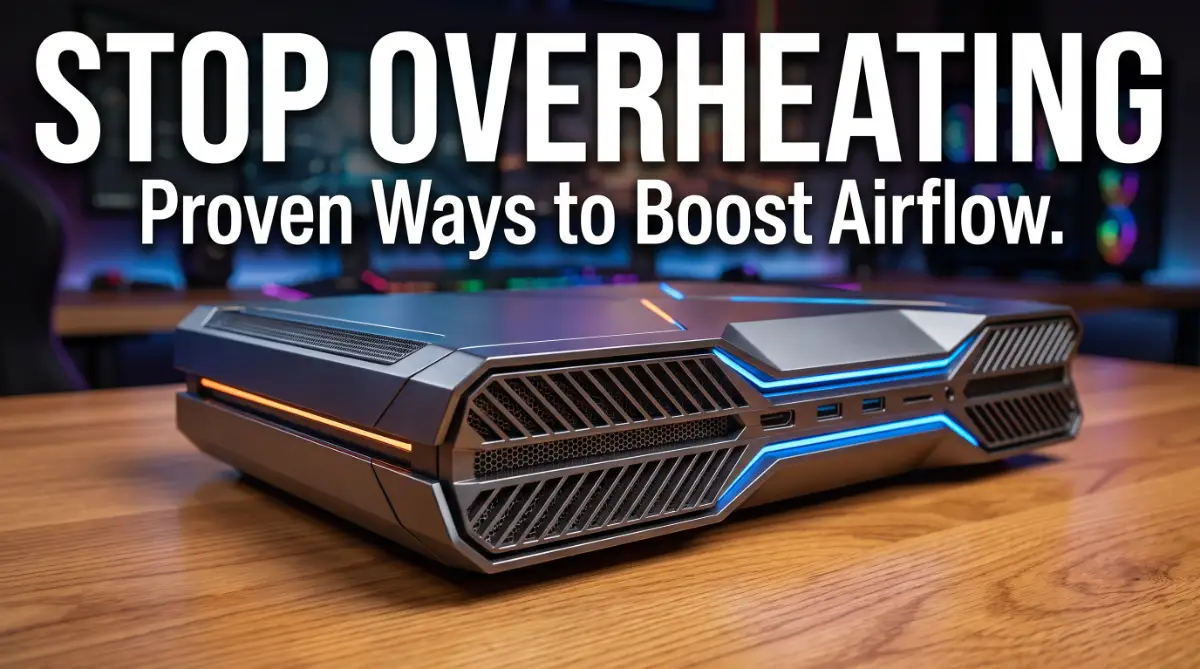
- Clear the air: Move your console out of closed cabinets so it doesn't overheat.
- Update DNS: Change your console settings to use Google (8.8.8.8) or Cloudflare (1.1.1.1).
- Kill Background Tasks: Close any Netflix or YouTube apps running in the background.
Diagnosing the Real Source of Your Lag
Before jumping into fixes, it helps to understand where lag actually comes from. There are three main culprits: your network connection, your console hardware, and your software settings.
Most people assume it's always the internet. That's not always true.
Step One: Test Your Connection the Right Way
Don't just glance at your Wi-Fi bars and assume everything's fine. Run an actual speed test using your console's built-in network test feature.
Here's what to check:
- Download and upload speed — anything below 10-15 Mbps can cause noticeable lag during online play
- Ping (latency) — this matters more than raw speed for gaming; aim for under 50ms if possible
- Packet loss — even small amounts can cause stuttering and rubber-banding
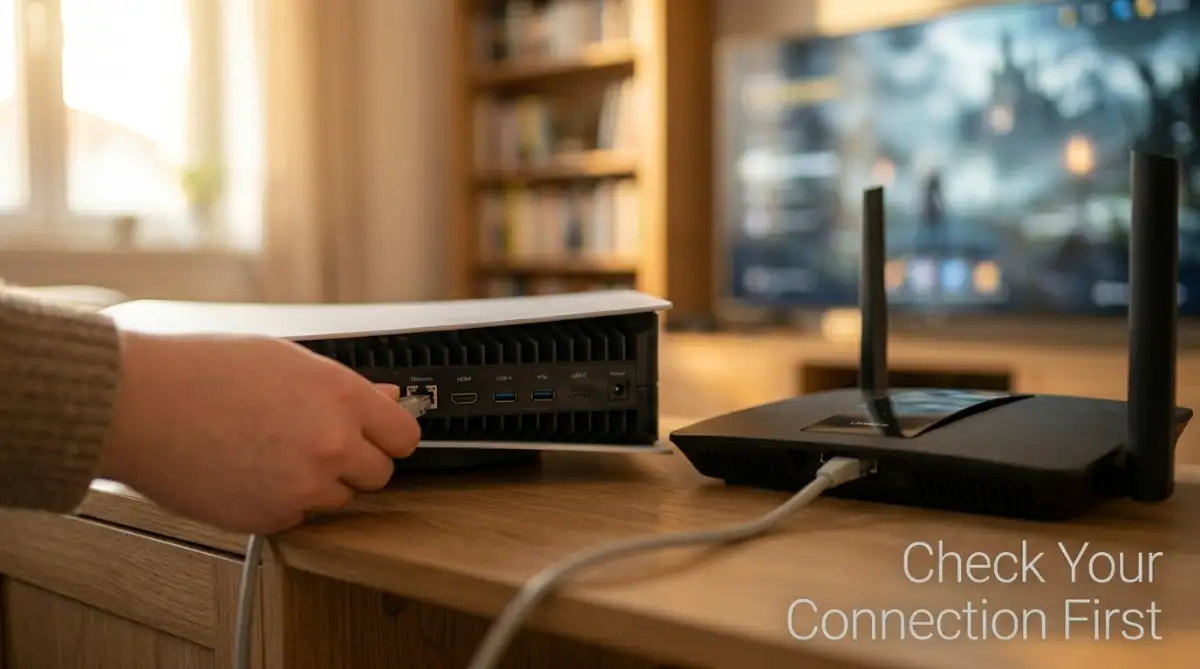
If you're on Wi-Fi, try switching to a wired ethernet connection for a quick test. Wired connections are almost always more stable than wireless ones, especially in homes with multiple devices competing for bandwidth.
Real-life example: A user with a 100 Mbps Wi-Fi connection might still experience lag if five other devices are streaming video at the same time. The speed number looks fine, but the network is overloaded.
Wait! Before you dig into your console settings, watch this quick video. It shows you exactly how to read those speed test numbers so you can stop guessing and start fixing the right problem immediately!
Step Two: Clear Out Background Clutter
Your console might be lagging because it's quietly working overtime in the background.
Check for:
- Pending system updates downloading silently
- Other apps or games still running in the background
- Cloud saves syncing during gameplay
Pro tip: Close every app you're not actively using. Consoles allocate memory and processing power to background tasks, even ones you forgot were open.
Step Three: Update Everything (Yes, Everything)
Outdated software is one of the most overlooked lag causes.
This includes:
- Your console's system software
- The specific game you're playing
- Your controller's firmware
- Your router's firmware
Manufacturers release updates specifically to fix performance bugs. Skipping these updates means you're missing fixes that were built exactly for problems like yours.
Why this matters: Game studios often patch lag issues within weeks of launch based on player feedback. If you're playing an unpatched version, you could be experiencing bugs that have already been fixed.
Step Four: Position Your Router Strategically
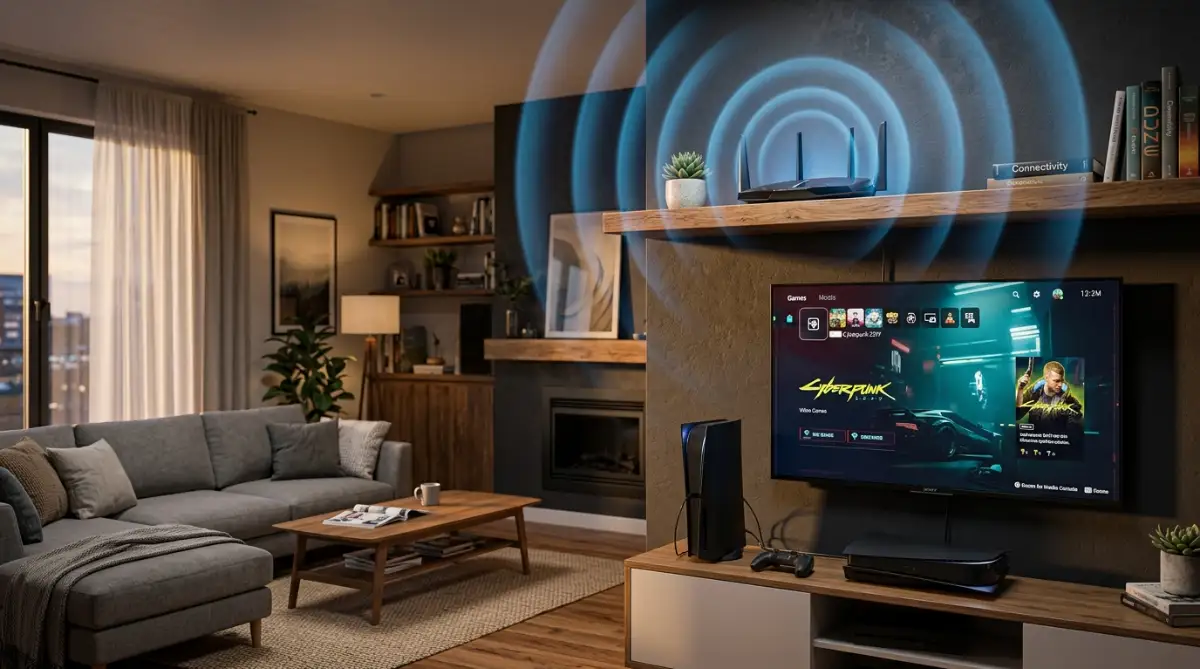
Where your router sits in your home has a bigger impact than most people realize.
Walls, distance, and even other electronics can interfere with your signal strength. Move your router to a central, elevated location, away from microwaves, baby monitors, and thick walls whenever possible.
If repositioning isn't an option, a Wi-Fi extender or mesh system can help close the gap between your router and your console.
Pro-Level Tweaks That Make a Real Difference
Once you've covered the basics, a few advanced adjustments can squeeze out extra performance most people never think to try.
I used to think my expensive Wi-Fi was enough for competitive play, but I was constantly getting kicked from lobbies at the worst times. My big "aha!" moment came when I finally stopped being lazy and plugged in a simple ethernet cable.
It felt like playing a completely different, much smoother game overnight, and I realized I had been making things harder for myself for no reason.
Switch to a Wired Connection Permanently
We mentioned testing with ethernet earlier, but this isn't just a temporary fix. If lag keeps coming back, make the wired connection permanent.
Why this works so well: Wireless signals constantly compete with neighboring networks, smart home devices, and even your microwave. A direct cable removes all of that interference completely.
If running a cable across your room isn't practical, powerline adapters let you send internet through your home's existing electrical wiring instead. They're not as fast as direct ethernet, but they beat Wi-Fi in most crowded households.
Adjust Your DNS Settings
This one sounds technical, but it's simpler than it looks. Your console's default DNS server (usually assigned by your internet provider) isn't always the fastest option available.
Switching to a public DNS service can shave milliseconds off your connection time. Sites like Cloudflare and Google publish free, reliable DNS addresses you can plug directly into your console's network settings in under two minutes.
If you don't know which DNS to use, don't worry. I’ve tested the top two that usually give the best results for Xbox and PlayStation. Try these:
- Google DNS: Primary 8.8.8.8 | Secondary 8.8.4.4 (Great for overall stability).
- Cloudflare DNS: Primary 1.1.1.1 | Secondary 1.0.0.1 (Usually the fastest for low-latency gaming).
I personally saw my ping drop by about 12ms just by making this one tiny change in my console settings.
Quick scenario: Imagine two players with identical internet plans. One uses their default ISP DNS, the other switches to a faster public option.
The second player often sees more consistent ping times, especially during peak hours when ISP servers get congested.
Give Your Console Room to Breathe
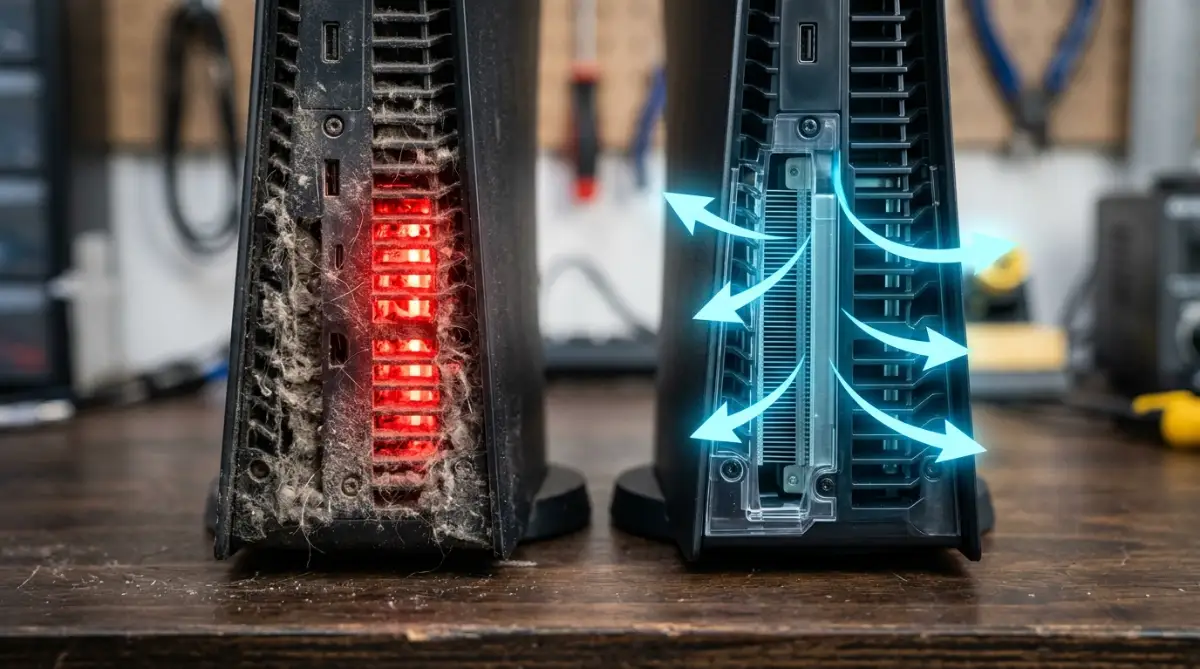
Heat is a silent performance killer. Consoles tucked inside closed entertainment units or stacked next to other electronics can overheat, which forces the system to throttle performance to protect itself.
Make sure your console has at least a few inches of open space on all sides. A small cooling fan stand can help too, especially during long gaming sessions in warmer climates.
Keeping These Results Long-Term
Fixing lag once feels great, but keeping it fixed takes a little ongoing maintenance.
Here's a simple routine worth building into your monthly habits:
- Check for system and game updates every couple of weeks
- Restart your router once a week to clear its memory
- Run a quick speed test if you notice performance dipping
- Dust out your console's vents every couple of months
Think of this like brushing your teeth. One good cleaning doesn't keep cavities away forever. Small, consistent habits are what actually protect your results.
If you're someone who already pays attention to understanding the impact of keyword research on search engine ranking for your own projects, you'll recognize this same principle: small, repeated actions compound into much bigger results over time.
Where Most Gamers Go Wrong (And How to Avoid It)
Even with good intentions, certain habits sabotage everyone's progress. Here are the mistakes that show up again and again.
Mistake One: Ignoring Small Lag Spikes
A lot of players brush off occasional stutters, assuming they're random and not worth investigating. Small spikes are usually early warning signs of a bigger issue building up.
Mistake Two: Skipping Router Restarts
Routers accumulate temporary data over weeks of constant use. Without a restart, that buildup can slow down your entire connection, even if your internet plan is fast on paper.
Mistake Three: Using Outdated Network Equipment
If your router is more than four or five years old, it may not support newer, faster Wi-Fi standards. Older hardware simply can't keep up with modern gaming demands, no matter how well you optimize your settings.
Mistake Four: Overloading the Network During Gameplay
Streaming a movie in another room while gaming, or letting a phone back up photos to the cloud, eats into your available bandwidth. Your console isn't the only thing using your internet, and it shows.
Mistake Five: Never Checking Cable Quality
Old or damaged ethernet cables can bottleneck your connection just as much as a weak Wi-Fi signal. If your cable is bent, frayed, or several years old, it might be time to replace it.
What happens if you ignore these mistakes? Beyond ongoing frustration, you risk wasting money on equipment upgrades that won't actually solve the root problem. Many players end up buying a brand-new console, thinking that will fix everything, when the real issue was a five-dollar cable or an outdated router.
I used to believe some common lies about gaming lag until I actually tested them. Here is what I found:
You're Ready for Smoother, Lag-Free Gaming
Fixing console lag isn't about luck. It comes down to understanding where the problem starts and working through it step by step.
You now know how to test your connection properly, clear out background clutter, keep your software updated, and make smart hardware adjustments that actually matter.
The best part? Most of these fixes cost nothing but a little time.
Start with the basics today. Test your speed, restart your router, and check for updates. Small changes like these often bring noticeable improvements within minutes.
Your next gaming session deserves to be smooth, responsive, and frustration-free. You've got everything you need to make that happen.
Getting rid of that annoying lag made gaming fun for me again instead of a source of daily stress. Take five minutes right now to just restart your router or check for an update—your future wins are waiting for you to clear the path.
You deserve to play at your best without your equipment getting in the way!
Disclaimer: This article is for general informational purposes only. Always refer to your device manufacturer's official guidelines and your internet service provider's recommendations before making any hardware, software, or network configuration changes.