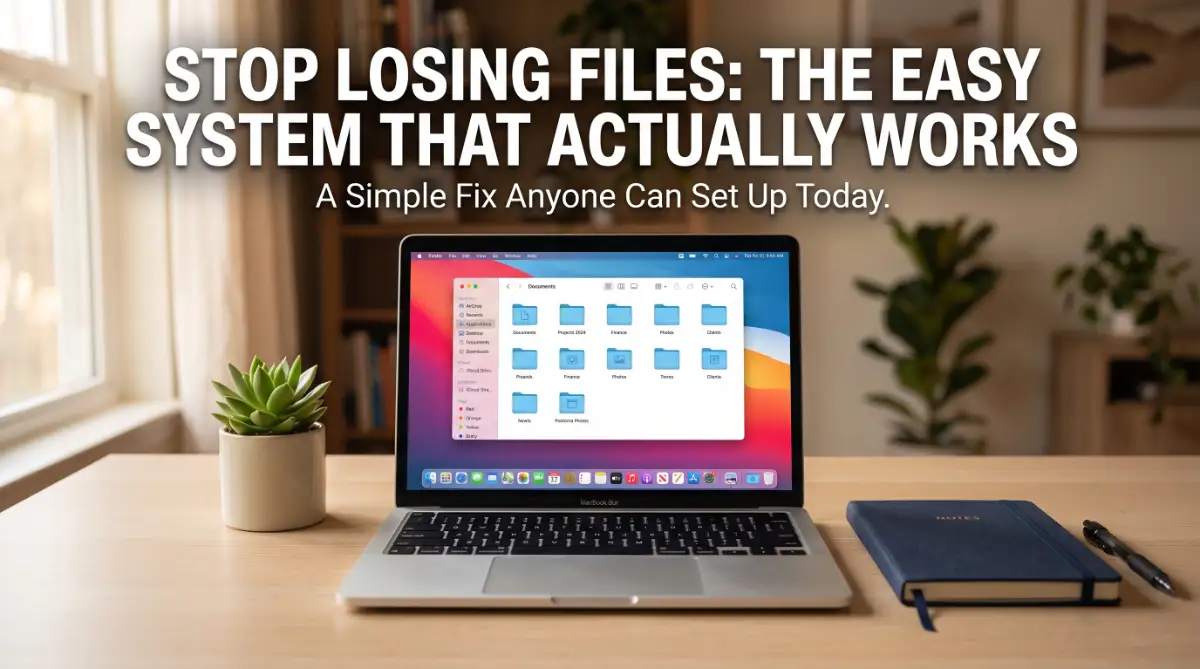
I used to have 500 icons on my desktop and called it "organized chaos." That was a lie. I almost lost my mind last month trying to find one PDF for a deadline.
I finally spent an hour fixing the mess, and I’ve never felt better. Here is the dead-simple system I use to keep my computer from becoming a digital graveyard.

⚡ Your 5-Minute Cleanup Action Plan
- Create the "Big 5": Only use Work, Personal, Bills, Photos, and Archive folders.
- The Inbox Hack: Use one folder for daily mess, then clear it out every Friday.
- Topic-Date-Detail: Name every file using this formula so the search bar works.
- 3-2-1 Rule: Keep three copies of your best stuff (PC, Cloud, External Drive).
- Screen Clear: Don't let your "Downloads" folder be
- come a second desktop.
The Three-Part System That Keeps Every File in Its Place
Let's get right into it.
This system works whether you're on Windows, Mac, or mostly using cloud storage like Google Drive.
Give Every File a Home Before You Save It
Here's the biggest shift you need to make.
Stop saving files "for now." Every file should land in its final folder the moment you save it.
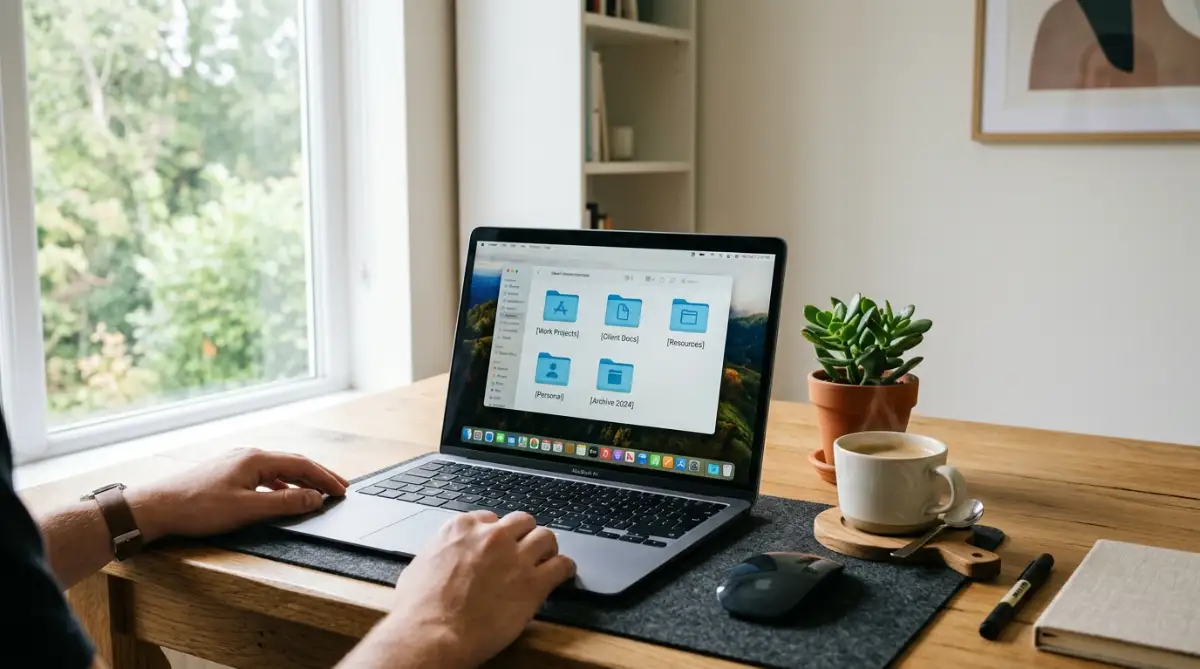
Try this simple structure to start:
- Work
- Personal
- Bills & Money
- Photos
- Old Stuff (Archive)
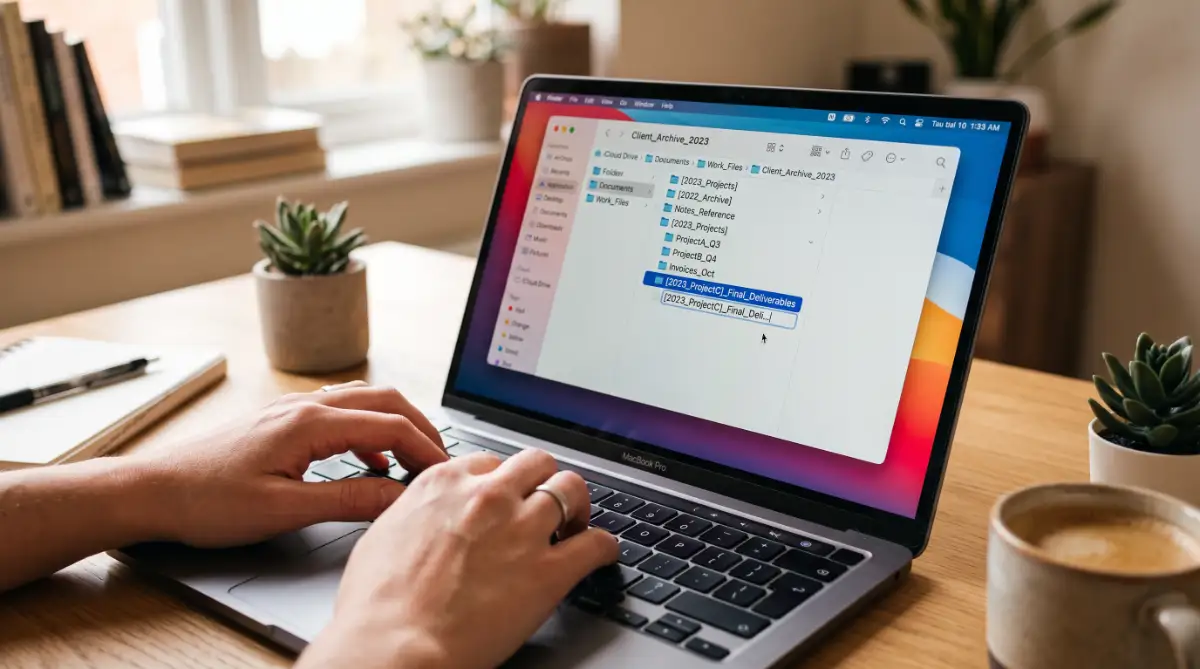
Why this helps: When you only have five main folders, your brain doesn't have to think hard about where something goes. Fewer choices mean faster decisions.
I used to make the mistake of creating thirty different folders for every tiny thing, but that just made the problem worse because I'd forget which one I used.
My biggest realization was that sticking to just five main categories is the "magic number" that stopped my brain from freezing up every time I hit the save button.
Real-life example: It's like grocery shopping with a list versus wandering the store hungry. A simple structure removes the guesswork completely.
💡 Myth vs. Reality: Digital Clutter
Build a Naming Habit You'll Actually Keep
Most naming systems fail because they're too complicated to remember.
Keep it this simple:
Topic-Date-Detail
For example: a report might become budget-report-march-draft instead of Untitled(4)final.
Why this matters: A clear name means you can find the file by typing two or three words into search, instead of opening ten folders one by one.
Research from Nielsen Norman Group on information architecture shows that clear, predictable labeling significantly reduces the time people spend searching for digital content.
If you want to see exactly how I rename my files and organize them into a clean setup, watch this quick visual guide—it makes the whole process feel way less scary!
Set a Weekly Five-Minute Reset
This step is small, but it's the one that makes everything stick long term.
Here's how it works:
Once a week, spend five minutes moving any stray files out of Desktop or Downloads into their proper folder.
Why this works: Small, regular cleanups stop clutter from building up into a mess that feels too big to fix.
Pro Tip: Set a recurring reminder on the same day each week, like Friday afternoon, so it becomes automatic instead of optional.
If building small consistent habits sounds useful beyond just your files, the same idea applies well to creating a simple morning routine that actually sticks, where tiny repeated actions build lasting change.
Myth vs Reality: Digital Organization
Myth - I need special software to get organized
Reality - A simple folder structure and naming habit is enough for most people
Myth - Organizing takes a whole weekend
Reality - A basic system can be set up in under an hour
Myth - Search bars make folders unnecessary
Reality - Search only works well when files are named clearly in the first place
Beyond Folders: The Habits That Make This System Last
A good folder structure gets you started. But what keeps it working six months from now is something different.
Let's talk about the habits that separate people who stay organized from people who slide back into chaos.
Protect Your Files With the 3-2-1 Backup Rule
Organizing your files means nothing if you lose them completely.
Here's a simple rule used by IT professionals everywhere: keep three copies of important files, on two different types of storage, with one copy stored somewhere else entirely.
What this looks like in real life:
- Your original file on your laptop
- A backup copy on an external hard drive
- A third copy synced to a cloud service like Google Drive or OneDrive
The National Institute of Standards and Technology recommends regular backups as one of the most basic ways to protect personal and business data from loss.
Why this matters more than people think: Hard drives fail without warning. A backup turns a disaster into a minor inconvenience.
Use Cloud Storage as a Safety Net, Not a Dumping Ground
Cloud storage is great, but only if you treat it the same way as your local folders.
Common trap: People create one clean system on their laptop, then dump random files into their cloud drive with zero structure.
Fix this by mirroring your folder categories. If your laptop has Work, Personal, Bills & Money, Photos, and Archive, your cloud drive should look exactly the same.
Q: Do I need to pay for cloud storage to stay organized?
A: No. Most free plans offer enough space for documents and important files. Paid storage only becomes necessary once you're saving large amounts of photos or video.
If you're managing money alongside your files, similar habits apply to creating a realistic monthly budget when you have irregular income, where a simple repeatable system beats a complicated one every time.
Do a Quarterly Deep Clean
Your weekly five-minute reset handles small clutter. But every few months, things still build up.
Set aside twenty minutes every three months to:
- Delete duplicate files
- Move anything you haven't touched in a year into Archive
- Check that your backup is actually running
- Rename any files that slipped through with unclear titles
🛠️ Expert Tip: The "Inbox" Method
If you’re too busy to file things during the day, create one folder on your desktop called "The Inbox." Save everything there. At the end of the day or week, move everything from "The Inbox" to its real home. This keeps your desktop clean while giving you a temporary "messy" space that doesn't get out of control.
💡 My "One-Click" Organizing Hack
If you have a massive pile of messy files right now, don't try to fix them all. Create one folder called "To Sort - [Today's Date]" and dump everything in there. Now your desktop is clean! From today, save new files correctly. Whenever you have a free 5 minutes, go into that "To Sort" folder and fix just five files. This way, the mess disappears without you burning out.
Pro Tip: Put this on your calendar the same way you'd schedule a dentist appointment. Out of sight means it never happens.

Where Most People Go Wrong (And What It Costs Them)
Even with the best intentions, a few habits quietly undo all this progress.
Here's what to watch for.
Mistake 1: Creating Too Many Folders
More folders sound organized, but they usually backfire.
The cost: You forget which of your twelve sub folders holds a specific file, and you're back to searching blindly.
Mistake 2: Skipping the Naming Step
Sorting files into folders without renaming them fixes only half the problem.
The cost: You still can't search by name, so you're stuck browsing folder by folder every time.
Mistake 3: Letting Downloads Become a Second Desktop
Many people fix their Desktop clutter, then let Downloads quietly become the exact same problem.
The cost: Old installers, duplicate PDFs, and screenshots pile up until the folder is unusable.
Mistake 4: Never Testing Your Backup
Saving files to a backup drive feels safe. But an untested backup can fail silently for months.
The cost: You discover the backup never worked at the exact moment you need it most, when a laptop crashes or a drive dies.
Mistake 5: Going All-In, Then Giving Up Fast
Some people try to reorganize every single file in one weekend, burn out, and abandon the whole system.
The cost: Half-finished folders create more confusion than the mess you started with.
A Quick Do's and Don'ts Recap:
Do Don't Keep folder categories broad and simple Create a new folder for every tiny topic Rename files as you save them Save first, rename "later" Test your backup once in a while Assume backups always work Build the system slowly over a week Try to fix everything in one sitting
For anyone also thinking about digital safety alongside organization, understanding how a VPN encrypts your data on public Wi-Fi networks is a useful next step, especially if you access your cloud files while traveling or working remotely.
Your Simple Path to a Computer That Finally Makes Sense
Let's bring this together into something you can actually use starting today.
Here's your action plan for tomorrow morning:
- Create your five broad folders first, nothing fancy
- Move ten files from your Desktop into their proper home
- Rename them using your simple Topic-Date-Detail formula
- Set up one backup method, even if it's just an external drive
- Put a weekly five-minute reset on your calendar
You don't need to fix everything today. You just need to start, and let the system build itself over the next few weeks.
A computer that makes sense isn't about being naturally organized. It's about having a system simple enough that you actually stick with it.
Give it one week. Open your laptop, and notice how much lighter it feels when you know exactly where everything lives.
Once I finally cleaned up my messy desktop, I felt like I could actually breathe again whenever I opened my laptop to work.
You don’t have to be a tech genius to get this right; just start with those first five files today and you’ll be amazed at how much mental weight disappears.
❓ Questions My Friends Always Ask Me
Q: I have 5,000 messy files right now. Do I have to fix them all?
A: No way. That’s too much work. Put all those old files into one folder called "Old Messy Backup." Only move a file out of there when you actually need it. This keeps your new system clean from day one.
Q: Should I use dates in every single file name?
A: I only do it for things that change often, like budgets or reports. For a scan of your passport, just "Passport-John.pdf" is fine. Don't overcomplicate it or you won't stick to the habit!
Disclaimer: This article is for general informational purposes only and does not constitute professional IT, data security, or backup consulting advice. For business-critical or sensitive data, please consult a qualified IT professional to design a backup strategy suited to your specific needs.