I’ve been there—heart racing, finger on the trigger, only for my mouse to double-click and blow my own cover. It’s enough to make you want to smash your gear and buy a new one immediately.
But wait! Before you drop $100 on a replacement, I want to show you how I fixed mine for free in less than five minutes. You can save your gear and your money today.
You're in the middle of an intense game. You click once. But somehow, it registers twice. That one extra click just sold your best item for nothing. Or worse, it fired your gun when you didn't mean to.
Most guides tell you to "just buy a new mouse." But that's not always the fix. Sometimes the mouse is perfectly fine. The real problem is hiding somewhere else, and if you don't find it, you'll keep wasting money on new mice that do the exact same thing.
We've seen people replace three mice in a row. The double clicking never stopped.
⚡ My Fast-Fix Cheat Sheet
- Drain Static: Click the buttons for 30 seconds while the mouse is unplugged.
- Blow Air: Use compressed air to clear dust from under the clickers.
- Adjust Software: Set "Debounce Time" to 8ms in your mouse settings.
- Check Batteries: Replace batteries if you use a wireless mouse.
- Firmware: Update your mouse drivers from the official brand website.
Why Your Mouse Clicks Twice: The Real Cause Explained
Before you fix anything, you need to know what's actually going wrong inside your mouse.
Most double clicking issues come from one of three places. Let's break each one down.
1. Worn-Out Micro Switches
Every mouse click button sits on top of a tiny mechanical part called a micro switch.
These switches are rated for a certain number of clicks, usually between 10 million and 50 million.
Over time, the metal contact inside the switch wears down. When that happens, a single press can send two signals instead of one.
2. Debounce Time Set Too Low
Here's something most people never hear about.
Every mouse has something called debounce time. This is a tiny delay, measured in milliseconds, that tells your mouse how long to wait before confirming a click is real.
If this delay is set too short, your mouse might read one physical click as two separate signals.
Why this matters: Some gaming mice let you adjust this setting in their software. If yours is set too aggressively low for speed, it can actually cause false double clicks.
✅ Quick Troubleshooting Checklist
Before you open the mouse, ask yourself:
- Is the software open? (Logitech G Hub / Razer Synapse)
- Is the battery above 20%?
- Did I try a different USB 3.0 port?
- Is "Enhance Pointer Precision" turned off in Windows?
🎧 The "Audio Test" for Failing Switches
Want to know if your switch is actually dying? Unplug your mouse and hold it close to your ear. Click it 20 times slowly. If the "click" sound feels mushy or sounds different every time, the physical spring inside is worn out. If the sound is crisp and consistent, your problem is likely just static or dust!
💡 The "Paper Friction" Secret Fix
If you don't have compressed air, try this old-school trick. Take a small piece of clean paper, slide it into the gap of the clicking button, and move it around gently. This creates a tiny bit of friction that can rub off the oxidation or dirt on the metal switch inside. It sounds simple, but I’ve seen this fix mice that were supposedly "dead."
3. Dust, Debris, or a Sticky Switch
Sometimes the fix is much simpler than people expect.
Dust, crumbs, or a sticky residue under the click button can interfere with the switch's contact point.
This causes the same kind of misfire as a worn switch, even if your mouse is brand new.
Pro Tip: If your mouse is under six months old and already double clicking, check for debris before assuming the hardware is broken.
💡 Quick Expert Tip: The "Static Electricity" Fix
Sometimes, your mouse isn't broken—it just has built-up static. Try this: Unplug your mouse, take out the batteries (if wireless), and click both the left and right buttons rapidly for 30 seconds. This drains the capacitors and often fixes "ghost clicks" instantly.
Myth vs Reality: Mouse Double Clicking
Myth Reality "Double clicking always means I need a new mouse" Often it's a software setting or dust issue you can fix in minutes "Expensive mice never have this problem"
Even premium gaming mice use mechanical switches that wear out "Cleaning never actually helps" Debris under the switch is one of the most common and easiest fixes
How to Fix a Double Clicking Mouse: Step-by-Step
Now that you know the cause, let's fix it.
Step 1: Adjust Your Debounce Time in Software
Most gaming mice come with their own software, like Logitech G Hub, Razer Synapse, or SteelSeries GG.
Here's what to do:
Open your mouse software and look for a setting called "Debounce Time" or "Click Latency."
Increase it slightly, usually by 4 to 8 milliseconds at a time.
Test your clicks after each change. You want the smallest delay that stops the double clicking without making your clicks feel slow.
One thing I learned the hard way is that sometimes what looks like a broken button is actually just a software setting.
I once spent an hour scrubbing my mouse with alcohol only to realize that a tiny tweak to my debounce time in the settings menu fixed everything instantly.
Why this works: You're giving your mouse just enough time to confirm the click is real before sending the signal to your computer.
🛠️ Quick Cleaning Toolkit
Make sure you have these simple items ready before you start cleaning your mouse:
Step 2: Clean the Click Button Properly
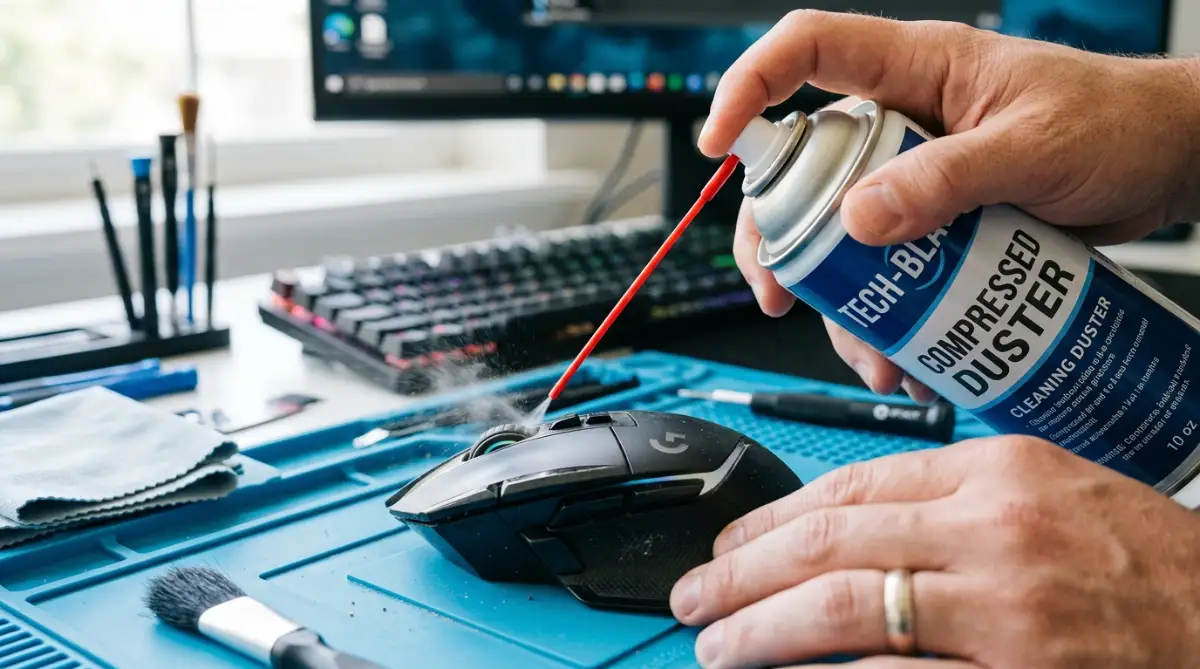
If adjusting software settings didn't help, move to cleaning.
You'll need:
- A can of compressed air
- A small dry brush or cotton swab
- Isopropyl alcohol (90% or higher)
Turn your mouse off and flip it upside down. Spray compressed air directly into the gap around the click button.
Press the button a few times while spraying to loosen any trapped dust.
If the problem continues, lightly dab a cotton swab with alcohol and clean around the edge of the button, avoiding the internal circuitry.
We recommend doing this once every few months, even if you're not having issues, since it prevents future problems.
Check out this short video to see the cleaning and software tricks in action—it makes the whole process much easier to follow and ensures you don't miss a single step!
Step 3: Test With a Different USB Port or Cable
This step gets skipped by almost everyone, but it matters.
A damaged USB port or cable can cause signal interference that looks exactly like a double click.
Plug your mouse into a different USB port on your computer. If you use a wireless mouse, try replacing the batteries or fully charging it first.
If the double clicking disappears, your original port or cable was likely the issue, not the mouse itself.
Step 4: Replace the Micro Switch (For Advanced Users)
If you've tried everything above and the issue continues, the micro switch itself is likely worn out.
This is a hardware-level fix and involves opening your mouse and soldering in a new switch.
This step requires:
- Basic soldering skills
- A replacement micro switch matching your mouse's specifications
- Patience, since mouse shells can be delicate to open
If you're not comfortable doing this yourself, many local electronics repair shops can replace a micro switch for a small fee, often cheaper than buying a brand-new mouse.
Mechanical vs. Optical Switches: Which Lasts Longer?
Popular Mouse Brands & Double Click Risk
How Long Should Your Mouse Last?
Quick Reference: Which Fix Should You Try First?
- Mouse is new (under 6 months): Start with cleaning
- Mouse is 1–2 years old: Try debounce settings first, then cleaning
- Mouse is 3+ years old: The micro switch is likely worn, consider replacement
- Problem started suddenly: Check your USB port or cable first
The Secrets That Keep Your Mouse Clicking Right for Years
Fixing the double click problem once is good.
But keeping it fixed for the long run? That takes a few extra habits most people never learn.
Let's go through the pro-level moves that separate a quick patch from a permanent fix.
Update Your Mouse Firmware Regularly
Here's something almost nobody checks.
Your mouse has firmware, small software that runs inside the hardware itself. Manufacturers release updates to fix bugs, including click registration issues.
Open your mouse's companion software and check for a firmware update option. It usually takes less than two minutes.
Calibrate Your Click Pressure
This one sounds strange, but it works.
Some gamers press buttons harder than needed out of habit, especially during intense moments.
The problem: Excess pressure speeds up wear on the micro switch, which brings back the exact issue you just fixed.
Try this instead: Practice light, controlled clicks during casual games first. Once it feels natural, it carries over into competitive play too.
Think of it like typing. A light touch typist's keyboard lasts longer than someone who pounds every key.
Use a Mouse Bungee or Cable Management
If you use a wired mouse, cable drag might be creating tiny electrical interference during fast movements.
A mouse bungee holds your cable up and away from the desk, reducing friction and unexpected tugging.
Why this matters: Sudden cable movement can sometimes cause momentary signal drops, which some users mistake for double clicking.
This is a small fix, but it removes one more variable from the equation.
Keep a Simple Maintenance Routine
Long-term results come from consistency, not one-time fixes.
Here's an easy routine to follow:
- Clean your mouse every two to three months
- Check for firmware updates once a month
- Test your debounce settings after any software update
- Inspect your cable and USB port every few months
💡 Pro Tip: The "Breathing" Method
If you don't have compressed air, try this: Cup your hand over the mouse buttons and blow a sharp, warm breath into the gap. The slight moisture and air pressure can sometimes clear static and tiny dust particles instantly. It sounds weird, but it works in a pinch!
If you also game on a console, similar attention to hardware upkeep can help with other performance issues, like the tips covered in fixing lag issues on a gaming console.

The Mistakes That Make Double Clicking Worse (Not Better)
Now let's talk about what NOT to do.
These mistakes are common, and they can turn a small issue into a bigger, more expensive one.
Mistake 1: Ignoring the Problem Too Long
Waiting weeks or months before addressing a double clicking mouse often makes the underlying switch damage worse.
What happens: A minor wear issue turns into a fully broken switch that needs replacement instead of a simple software fix.
Mistake 2: Opening the Mouse Without Research
Jumping straight into disassembly without watching a proper guide for your exact mouse model can damage the shell or internal ribbon cables.
The risk: You might turn a fixable software issue into a mouse that no longer works at all.
Mistake 3: Using Compressed Air Incorrectly
Spraying compressed air too close or holding the can upside down can release moisture into your mouse.
Why this is dangerous: Moisture near circuit boards can cause permanent damage, which is far worse than the original double clicking problem.
Mistake 4: Changing Multiple Settings at Once
Adjusting debounce time, polling rate, and DPI all at the same time makes it impossible to know which change actually fixed the issue.
Better approach: Change one setting, test it, then move to the next.
Mistake 5: Buying a New Mouse Without Testing the Old One First
This is the most expensive mistake on this list.
Many people replace their entire mouse when the real problem was dust, a loose USB connection, or a simple software setting.
Do's and Don'ts Quick Guide:
Do Don't Test one fix at a time Change every setting at once Research your exact mouse model first Open the mouse blindly Clean gently with proper tools Spray air too close to
The board Check software settings before buying new Assume it's always a hardware failure
If gaming mice aren't your only tech concern, similar troubleshooting patience applies elsewhere too, like learning how to extend the battery lifespan of a modern laptop, where small daily habits prevent bigger problems later.
For deeper technical reading on switch durability and mechanical component lifespan, resources like IEEE's research publications on switch reliability testing offer useful background for anyone curious about the engineering side of this issue.
❓ Quick Fix Q&A
Q: Can a low battery cause double-clicking?
A: Yes. If you use a wireless mouse, low power can mess with the signal, making it look like a double-click. Always charge it fully before trying other fixes.
Q: Is it okay to use WD-40 to clean my mouse?
A: No! Never use regular WD-40. It leaves an oily film that can ruin the electronics. Stick to isopropyl alcohol.
Your Action Plan for a Click That Just Works
Let's bring this together.
A double clicking mouse feels like a small annoyance, but it chips away at your focus, your scores, and your confidence over time.
The good news is simple: most fixes take minutes, not money.
Here's your quick checklist to follow starting today:
- Adjust your debounce time first, since it's free and instant
- Clean around your click button with the right tools
- Test a different USB port or fresh batteries
- Build a simple maintenance habit so the problem doesn't return
- Only consider a switch replacement or new mouse as your last option
You don't need to guess anymore, and you don't need to accept random double clicks as "just how gaming mice are."
Small, consistent care keeps your gear working the way it should, click after click.
Start with the first step today. Your next match deserves a mouse that listens to you exactly once, every time you ask it to.
It feels so good to finally play without worrying if my mouse is going to mess up my next big move. Take ten minutes to try these steps right now—you might just save yourself the cost of a new mouse and get back to winning your games today!
Disclaimer: The tips shared in this article are for general informational purposes only and are not a substitute for official manufacturer guidance. Attempting internal hardware repairs may void your device's warranty. Please proceed at your own risk or consult the manufacturer's official support team for warranty-related concerns.
