Your laptop was built for travel, but right now, it probably feels like it's stuck to the wall. It’s annoying when you can't even finish a movie or a project without hunting for a power outlet.
I’ve spent way too much time worrying about that little red battery icon, and I finally figured out that most of what we’re told about battery life is just plain wrong. Let's talk about how to keep your machine alive for years, not months—no tech-nerd degree required.
The Constant Anxiety of a Draining Battery Percentage
We have all been there. You are in the middle of an important meeting or finishing a creative project, and you see it. That little red icon in the corner of your screen starts flashing. The panic sets in immediately as you look for a wall outlet.
You feel like you are tethered to a cord, unable to move or work freely. It is frustrating to buy a premium device only to have it turn into a "desktop" because the battery cannot hold a charge.
This problem makes you feel like you are losing control over your own tools. You bought a laptop for its portability, but now you are afraid to leave your house without a bulky charger. It ruins the joy of owning modern technology.
Why Most Users Fail to Protect Their Battery Health
Many people want to take care of their laptops, but they are often following the wrong advice. The internet is full of old myths that no longer apply to modern machines. Here is why the struggle continues:
- Following Outdated Advice: Many people still think they need to drain the battery to 0% before charging. This worked for old batteries, but it actually hurts modern Lithium-ion cells.
- Using Cheap Third-Party Chargers: Using a charger that did not come with your laptop can send the wrong voltage. This creates tiny shocks to the battery that wear it out faster.
- Ignoring the Silent Killer: Most users do not realize that heat is the biggest enemy of a battery. Keeping a laptop on a soft blanket might feel cozy, but it is suffocating the battery.
- Leaving it Plugged in 24/7: Keeping your laptop at 100% charge all day creates high pressure inside the battery. This pressure causes the chemical parts to break down quickly.
- Background App Overload: People often blame the battery when the real problem is messy software. Too many apps running at once drain the power like a leaking bucket.
Understanding the Reality of Modern Battery Science
To solve this, we have to look at what is happening inside your device. Modern laptops use Lithium-ion or Lithium-polymer batteries. These are amazing because they are light and store a lot of energy. However, they have a limited number of "cycles."
A cycle is used whenever you discharge and recharge your battery. Think of it like a deck of cards. Every time you use the battery, you are throwing away a card. Once the cards are gone, the battery is "dead." Our goal is to play the cards as slowly as possible.
We want to keep the chemicals inside the battery stable for as long as we can. It is not about luck. It is about smart habits. By changing a few simple things in your daily routine, you can keep your battery healthy for many years. Let’s look at how you can do that right now.

💤 Sleep, Hibernate, or Shut Down?
I used to just close my laptop lid and walk away, but that can really wear your battery out over time. Here is a simple guide on what to do and when:

🚀 The "Battery Survival" Cheat Sheet
If you're in a rush, just follow these four golden rules to double your laptop's life:
- The 20-80 Rule: Don't let it drop below 20%, and try to unplug it at 80%. Going to 100% all the time "stresses" the battery.
- Avoid the "Heat Trap": Never use your laptop on a bed or pillow. If it can't breathe, the battery "cooks" from the inside.
- Check the Apps: Close those 50 open Chrome tabs. Each one is a tiny vampire sucking the life out of your battery.
- Find your "Limit" setting: Check your laptop settings for a "Battery Conservation Mode." It’s the easiest way to automate your battery health.
Step 1: The Magic 20-80 Rule for Daily Charging
The most effective way to keep your battery young is to avoid the extremes. Batteries are like humans; they don't like being totally empty or totally stuffed.
When a battery is at 0%, the chemicals inside become unstable. When it stays at 100% for too long, it creates internal stress. The sweet spot for a healthy battery is between 20% and 80%.
Try to plug in your charger when the battery hits 20%. Once it reaches 80% or 90%, feel free to unplug it. This keeps the voltage at a comfortable level for the battery cells. Imagine a rubber band.
If you stretch it to its very limit every day, it will eventually snap. If you keep it relaxed, it stays stretchy for a long time. Your battery works exactly the same way.
I used to be the person who kept my laptop on a soft pillow every night while watching movies. I didn't realize I was literally cooking my battery until I saw the bottom of the case starting to warp.
Now, I always keep it on a flat surface, and this one simple change stopped my fans from screaming and helped my battery stay healthy much longer.
Many modern laptops now have a "Battery Limit" feature in the settings. You can set it to stop charging at 80% automatically. This is a game-changer for people who like to work while plugged in.
Step 2: Fighting the Heat—The Silent Battery Killer
If your laptop feels hot to the touch, your battery is in trouble. Heat causes a chemical reaction that permanently reduces how much energy the battery can hold. Always use your laptop on a hard, flat surface like a desk or a table.
This allows the fans to push out hot air properly. Avoid using it on beds, pillows, or your lap for long periods. These soft surfaces block the vents. When the vents are blocked, the heat stays inside and "cooks" the battery cells.
This is the fastest way to ruin a brand-new device. You should also be careful about where you store your laptop. Never leave it in a hot car during the summer. Even a few hours in a high-heat environment can kill months of battery life.
If you are doing heavy work like editing video or gaming, try to keep the room cool. If the laptop gets too hot, give it a five-minute break to cool down. Your battery will thank you for it.
Wait! Before you move on to the steps, check out this quick video that explains exactly how battery cycles work. Seeing it in action will help you understand why these small habits are so powerful for your device.
Step 3: Cleaning Up Your Software Power Drains
Sometimes, your battery is fine, but your software is "thirsty." Every app you have open requires a little bit of energy to stay running. Start by checking your screen brightness. This is usually the biggest power consumer.
Lowering your brightness by just 20% can add a lot of extra time to your daily usage. Next, look for "vampire apps." These are programs that run in the background even when you aren't using them. Go to your settings and see which apps are using the most power.
Close browser tabs that you are not using. Each open tab in Chrome or Safari uses memory and CPU power. This forces the battery to work harder than it needs to. Turn off Bluetooth and Wi-Fi if you don't need them.
If you are writing a document offline, putting your laptop in Airplane Mode can save a surprising amount of energy. By making these small adjustments, you reduce the "load" on your battery. When the load is lower, the battery discharges more slowly.
This means you use fewer "cycles" each day, making your battery last for years. We have only just started protecting your tech. In the next part, we will look at more advanced settings and the common mistakes that can ruin your progress. For now, try to unplug that charger once you hit 80%!
Optimizing Your System for Maximum Energy Efficiency
Now that we have covered the basics of physical care and heat management, let us look at some advanced secrets. These tips are used by tech experts to keep their machines running like new for five or six years.
Many people think that once a battery starts to fade, there is nothing you can do. That is not true. By changing how your laptop handles power when you are not looking, you can save hundreds of battery cycles over time.
Choosing Hibernation Over Sleep Mode
Most of us simply close the laptop lid when we are done for the hour. This puts the computer into "Sleep Mode." In this state, the laptop keeps your open apps and data in the RAM. This requires a constant, tiny drip of power from the battery.
If you leave it in sleep mode overnight, you might lose 5% to 10% of your charge. Over a year, these small drains add up to many full charge cycles. Instead, you should use "Hibernation Mode."
Hibernation saves your open work onto the hard drive or SSD and turns the power off completely. It takes a few seconds longer to wake up, but it uses zero battery power while it sits in your bag.
Think of it like a car. Sleep mode is like leaving the engine idling at a red light. Hibernation is like turning the engine off while you go into a shop. If you are going to be away from your desk for more than thirty minutes, choose Hibernation.
The Benefit of Manufacturer Battery Software
Did you know that companies like ASUS, Dell, Lenovo, and HP have built-in "battery doctors"? Most people never open these apps, but they contain the ultimate pro secret. Look for apps like "Lenovo Vantage," "MyASUS," or "Dell Power Manager."
These programs allow you to turn on a feature often called "Conservation Mode" or "Battery Health Mode." When you turn this on, the laptop will stop charging at 60% or 80%, even if it is plugged into the wall.
It allows the laptop to run directly on the power from the outlet without passing through the battery. This is the best way to use a laptop if you usually keep it on a desk.
It keeps the battery in a relaxed state and prevents the chemical aging that happens when a battery is constantly held at 100%. If you plan to use your laptop at home all day, turn this feature on immediately.
Calibrating Your Battery for Accuracy
Sometimes, your laptop might show 30% battery and then suddenly shut down. This happens when the digital sensor inside the battery gets confused. It "forgets" where the real empty and full points are.
To fix this, you should calibrate your battery once every few months. This does not make the battery stronger, but it makes the percentage display accurate so you are never caught by surprise.
🛠️ How to See Your Battery’s "Real" Age
You don't have to guess how healthy your battery is. You can actually ask your laptop to give you a secret report:
- For Windows users: Open your search bar, type cmd, right-click it to "Run as Administrator," and type powercfg /batteryreport. It will save a file that shows your battery's original capacity versus what it can hold now.
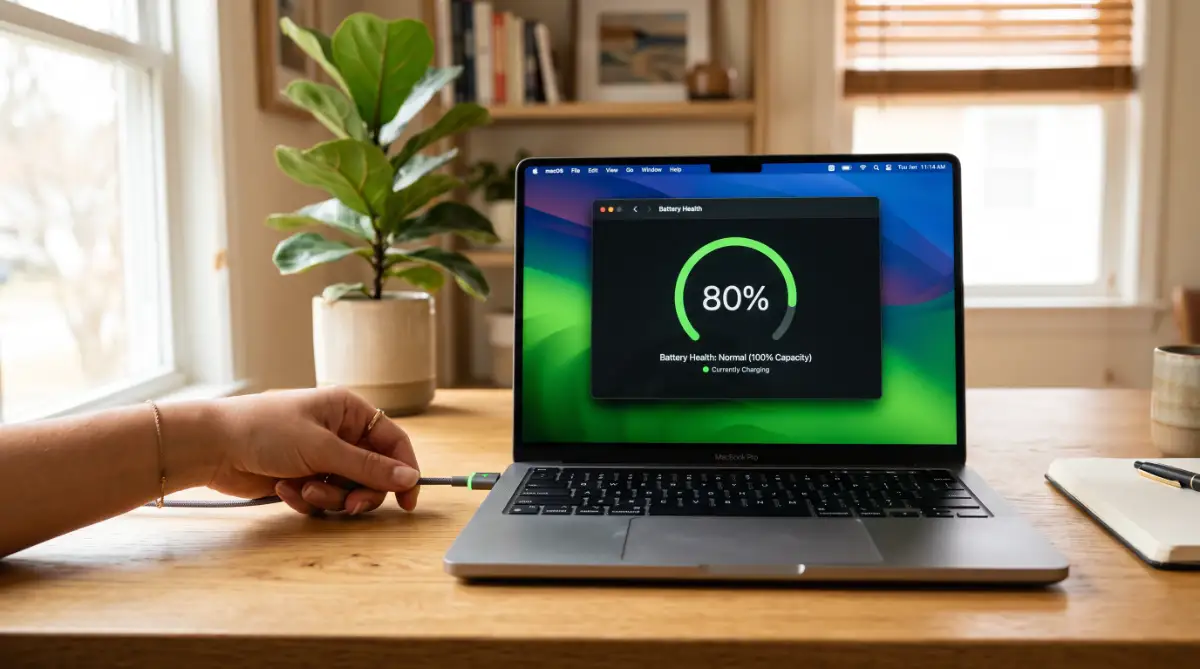
- For Mac users: Click the Apple logo > About This Mac > System Report > Power. Look for "Cycle Count" and "Condition." If it says "Service Recommended," it might be time to think about a replacement.
To calibrate, charge your laptop to 100% and keep it there for two hours. Then, unplug it and use it until it dies and shuts down completely. Let it sit empty for about five hours, then charge it back to 100% without stopping.
This process "resets" the sensor. It is like re-aligning a scale so you get an honest reading of your weight. Knowing your true battery percentage helps you follow the 20-80 rule more effectively.
Managing Your Long-Term Storage Habits
What if you are going on vacation and won't use your laptop for a month? Many people either leave it at 100% or let it sit at 0%. Both are bad for the battery.
If a battery sits at 0% for too long, it can fall into a "deep discharge state." If this happens, the battery might never charge again. It effectively "dies" permanently because the internal safety switch trips.
If you are putting your laptop away for a long time, charge it to exactly 50%. Then, turn it off completely (not sleep mode). Store it in a cool, dry place away from sunlight.
Every month or two, turn it on to check the level. If it has dropped below 40%, charge it back up to 50%. This keeps the chemicals stable and ready for action when you return.

Common Traps That Kill Laptop Batteries Fast
Even smart users make mistakes that slowly destroy their hardware. By knowing these pitfalls, you can avoid the "battery death trap" that hits most laptop owners.
- Blocking the Airflow on Soft Surfaces: We mentioned this before, but it is worth repeating. Using your laptop on a bed or carpet acts like a blanket. It traps heat inside, which is the fastest way to kill the battery cells.
- Buying Cheap, Non-Branded Chargers: It is tempting to buy a $10 charger from a random website if your original one breaks. However, these often lack voltage protection. They can send spikes of electricity that fry your battery or even your motherboard.
- Always Running in "High Performance" Mode: Most laptops have power plans. If you keep it on "Best Performance" while just browsing the web, you are making the CPU work harder and hotter than it needs to. Use "Balanced" or "Power Saver" for light tasks.
- Leaving Accessories Plugged In: External hard drives, mice, and even USB light strips draw power from your laptop. If you are running on battery, unplug everything you are not actively using.
- Extreme Cold Is Also Bad: People talk a lot about heat, but freezing cold is also dangerous. If you leave your laptop in a freezing car, the battery chemicals can thicken and lose their ability to hold a charge.

Taking Charge of Your Tech Future
Maintaining a laptop battery is all about small, daily habits. You don't need to be a computer scientist to make your device last. You just need to be mindful of how you charge and store it. Start by checking your settings today.
Turn on a battery limit if your laptop supports it. Stop using your laptop on the sofa without a hard tray or a desk. When you treat your tech with respect, it rewards you with years of great performance.
It feels amazing to finally trust my gear again instead of worrying about it dying every hour. Start with just one of these steps today—like unplugging at 80%—and you’ll be surprised at how much longer your laptop stays "young" and ready for your best work.
You will feel much more confident knowing that you can go to a cafe and work for hours without hunting for a power outlet.
You have the power to stop the "red icon panic." Be consistent, keep your device cool, and follow the 20-80 rule. Your laptop—and your wallet—will thank you for your effort every single day.
Disclaimer:
Just a quick heads-up before you start. The tips in this post are based on my personal experience and general tech knowledge. Since every laptop is different, please check your owner’s manual or the manufacturer’s website for specific advice. I am not a professional repair person, so I can’t be held responsible for any hardware issues or changes to your warranty. Use these tips at your own risk!
![The Secret Science of Wireless Charging: Why Cables Are Still Winning [Explained]](https://nexvoramag.com/storage/uploads/blogs/1788067627_the-secret-science-of-wireless-charging-why-cables-are-still-winning-explained.webp)