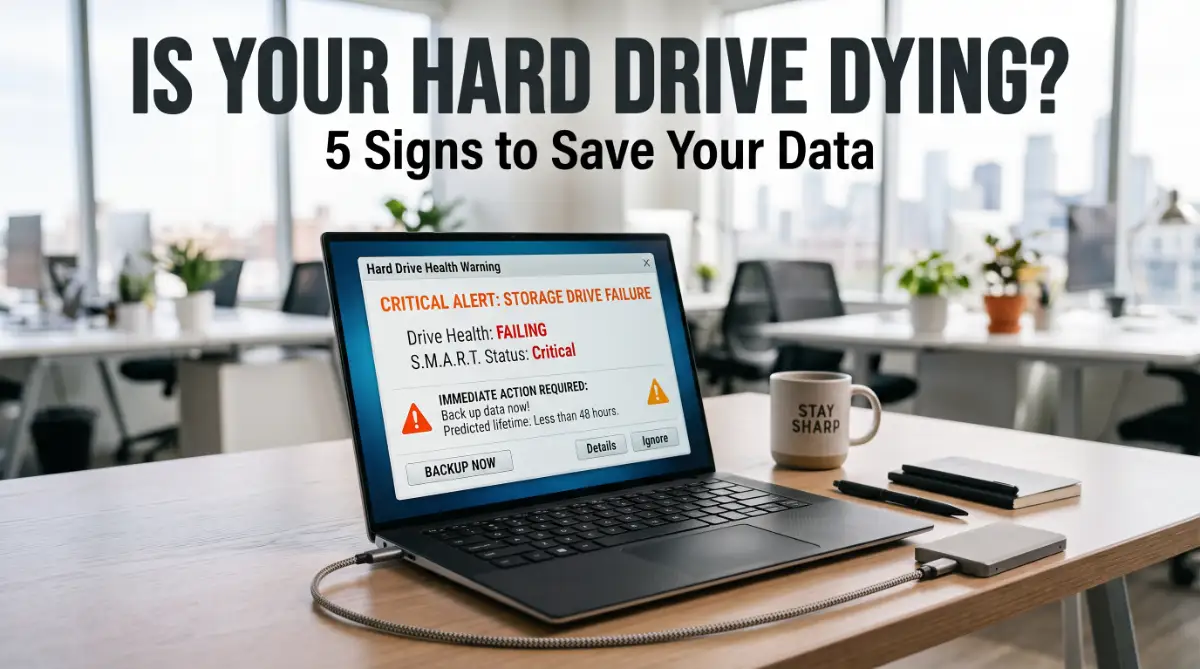
I still get a pit in my stomach thinking about the day my laptop died. I ignored a tiny clicking sound for weeks, and then suddenly, three years of family photos were just... gone.
I don't want you to feel that same panic, so let’s talk about the simple signs your hard drive is trying to tell you it's tired.
Is your laptop freezing or making strange clicking noises?
It’s scary when your computer starts acting up, especially when all your files are on it.
Most people ignore a slow laptop until it just won't turn on anymore. By then, your precious photos and important work files are gone forever. Trying to fix a dead drive is expensive and often impossible once total data loss happens.
The good news is that your laptop usually gives you warnings before it quits. We are going to show you the easy-to-spot signs of a failing hard drive.
Follow these tips to save your data before it is too late.
The Hidden Fear of Every Laptop User
We use our laptops for everything. We store our family photos, work documents, and personal projects on them. But one day, things start to feel "off."
Your computer takes a bit longer to start. A file doesn't open. You hear a sound you haven't heard before.
This is the start of a very stressful journey. Most people don't realize that their hard drive is a mechanical part that has a limited life. When it begins to fail, it doesn't always tell you clearly. It gives small, quiet hints that something is wrong.
If you ignore these hints, you might wake up to a "Disk Boot Failure" message. This means all your files are gone. The panic that follows is something I want to help you avoid. It is a feeling of helplessness that stays with you.
Most users try to ignore the problem. They hope that a simple restart will resolve the issue. Sadly, hardware problems don't go away. They only get worse with time.
By the time the drive stops spinning, it is often too late to save anything without spending thousands of dollars on professional recovery.
⚡ Quick Summary: Is Your Drive Dying?
- Listen for Noises: If you hear clicking or grinding, shut it down immediately.
- Watch for Freezes: Frequent "Blue Screens" often mean the drive can't read files.
- Check File Health: If photos or documents won't open or disappear, it's a major red flag.
- Speed Matters: A drive that suddenly takes forever to load is on its last legs.
- Action Plan: Back up your most important files (photos/work) to the cloud first before trying any fixes.
The 5 Warning Signs You Cannot Ignore
Your laptop is a smart machine. It tries to warn you when things are going wrong inside the hardware. Here are the most common signs that your hard drive is about to give up.
1. Strange Clicking or Grinding Noises
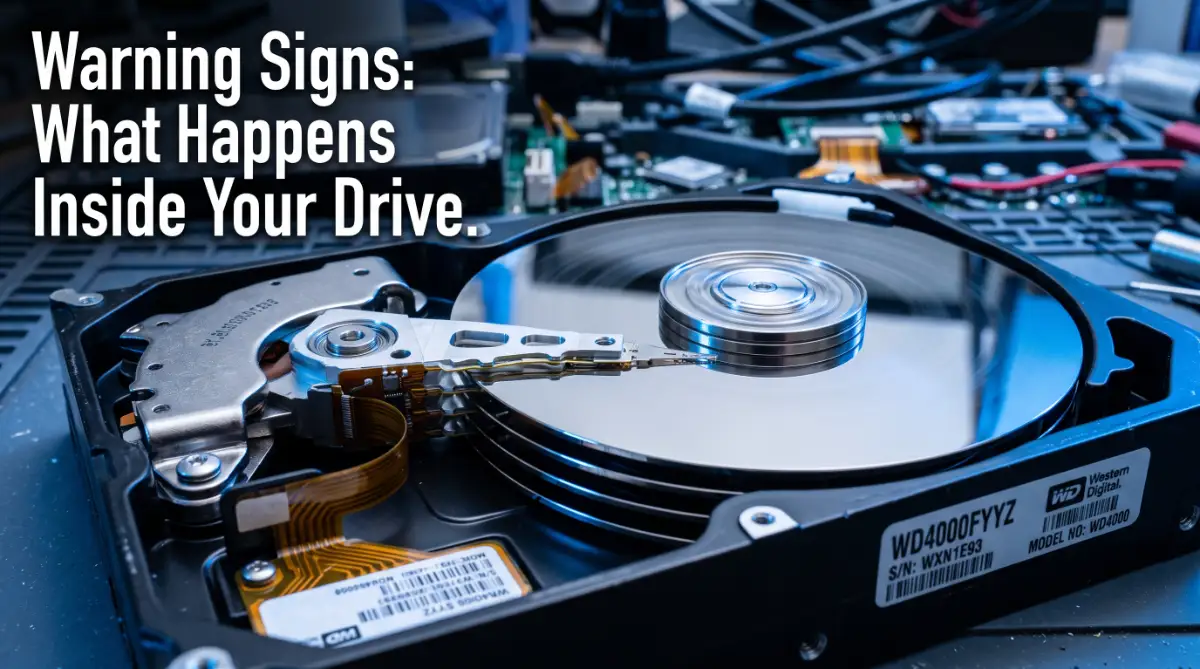
This is the most famous sign of a physical failure. It is often called the "Click of Death." Inside a traditional hard drive, a tiny arm moves back and forth to read data.
If that arm starts to fail or gets stuck, it makes a repetitive clicking sound. A grinding or whirring noise usually means the motor or the bearings are wearing out.
If you hear this, shut down your computer immediately. Physical damage cannot be fixed with software. Every second the disk spins while making these noises, it is physically scratching your data away.
I once made the huge mistake of running a heavy "PC repair" scan when my laptop started clicking, thinking it would fix the problem. I didn't realize that making the drive work that hard was actually finishing it off even faster.
My best advice is to stop everything and copy your most important files first before you try any software "fixes" or scans.
2. Frequent System Crashes and Freezing
Does your laptop suddenly stop responding for no reason? Do you see the "Blue Screen of Death" more than once a week?
This often happens when your computer tries to read a "bad sector." A sector is a tiny piece of the drive. When it gets damaged, the operating system gets stuck in a loop trying to find the data.
If your computer freezes while you are trying to open a simple folder, the drive is likely struggling to stay alive. This is a clear signal that the hardware is no longer reliable.
3. Disappearing Files and Folder Corruption
Have you ever looked for a file and found it missing? Or maybe when you try to open a photo, you get an error message saying the file is "corrupted"?
This is a very scary sign. It means the drive is starting to "forget" where it stored your information. The magnetic bits that hold your data are losing their charge.
Data corruption doesn't happen by accident. If multiple files start acting weird at the same time, your hard drive is losing its ability to hold data. You should move your most important files to a safe place right now.
4. Extremely Slow Access Times
Modern laptops should be fast. If it takes five minutes for your laptop to reach the desktop, something is wrong.
If opening a small Word document takes several minutes, the drive is working overtime to read the data. It might be retrying the same spot a thousand times before it finally succeeds.
This slowness is a final warning. The drive is like an old man struggling to walk. Eventually, it will stop walking altogether. Don't wait for that moment.
5. S.M.A.R.T. Errors and Disk Warnings
Your computer has a built-in health monitor called S.M.A.R.T. It stands for Self-Monitoring, Analysis, and Reporting Technology.
Sometimes, when you start your laptop, you might see a black screen with text saying "S.M.A.R.T. Status: Bad" or "A failure may be imminent."
Never ignore this message. This is the drive itself telling you that it has detected an internal hardware failure. It is the most accurate warning you can get.
If you want to hear exactly what a dying hard drive sounds like, watch this short video. It will help you know if your laptop is in immediate danger! After you've heard the sounds, keep reading to learn about the other silent warnings your computer might be sending.
The Science of Why Drives Fail
Hard drives are high-precision machines. The read-head flies just nanometers above the spinning disk. For comparison, a human hair is thousands of times thicker than that gap.
Over time, heat makes the parts expand and contract. This causes wear. Also, even a small bump while the laptop is running can cause the head to crash into the platter.
Even if you are very careful, these drives have a natural lifespan. Most mechanical drives start to show problems after three to five years of regular use. It is simply the reality of moving parts.
The Difference Between HDD and SSD Failure
Traditional Hard Disk Drives (HDDs) have moving parts. They usually give you signs like noises or slowness.
Solid State Drives (SSDs) are different. They use flash memory, so they are silent. When an SSD fails, it often happens suddenly without any sound.
However, SSDs will often become "Read-Only" when they are about to die. If you can open your files but cannot save anything new, your SSD is likely at the end of its life.
| Feature | Traditional Hard Drive (HDD) | Solid State Drive (SSD) |
| Warning Signs | Loud clicking, grinding, or whirring. | Silent failure, files become "Read-Only." |
| Speed | Gets slower as it gets older. | Stays fast until it suddenly stops. |
| Durability | Sensitive to drops and magnets. | Very tough; no moving parts inside. |
| Best For | Cheap bulk storage (Photos/Movies). | Operating systems and fast daily work. |
Step 1: Prioritize Your Data Immediately
If you suspect your drive is dying, do not try to back up everything at once. This can be too much work for a weak drive.
Start with your "Life Essentials." These are files that cannot be replaced. Family photos, birth certificates, and tax documents come first.
Next, move to your current work projects. Don't worry about your downloaded movies or software programs. You can always download those again later. Focus only on what is unique to you.
Step 2: Use Cloud Storage for Small Files
For your most important documents, use services like Google Drive or OneDrive. They are fast and don't require you to plug in extra hardware.
Uploading small files to the cloud is a great way to secure them quickly. If the drive dies in the middle of the process, at least your most important papers are already safe in the digital world.
Step 3: The "Cool Down" Method
If your drive is failing because of heat, it might work better if it is cool. Make sure your laptop is on a hard, flat surface to allow for maximum airflow.
Some people use a laptop cooling pad. This can sometimes give you just enough time to copy those last few folders before the drive shuts down for the final time.
Keep the room cool and avoid running any other apps while you are copying your data. You want the drive to focus 100% of its energy on moving files.
Is It Time for a New Drive?
Once a hard drive shows these signs, you should never trust it again. Even if it seems to work fine the next day, the damage is already there.
Replacing a hard drive is much cheaper than paying for data recovery. Most modern laptops can be upgraded to an SSD, which will make your computer feel faster than the day you bought it.
Think of it as a chance to refresh your technology. You are moving from an old, risky system to a new, safe, and fast one.
Thoughts on Data Safety
Your data is your digital life. Watching for these five signs is the best way to protect yourself from a disaster.
If you hear clicking, see frequent crashes, or notice missing files, take action today. Don't wait until tomorrow. The best time to save your data is while the drive is still spinning.
Keep your laptop cool, listen to the sounds it makes, and always have a backup plan. By being proactive, you can turn a potential disaster into a simple hardware upgrade.
Advanced Techniques to Monitor Your Drive’s Health
Once you recognize the early warnings of a failing drive, you need to take control of the situation. Most people stop at the warning signs and just wait for the disaster to happen.
You can do better by using professional-grade monitoring to see exactly how much time your drive has left.
One of the best ways to do this is by checking the reallocated sector count in your drive’s internal log. Every drive has a small number of spare sectors it uses when original ones get damaged.
If this number starts to go up quickly, it means the physical surface of your disk is literally falling apart.
You should use a lightweight, free tool to read these S.M.A.R.T. attributes. Look for values like "Pending Sector Count" or "Uncorrectable Sector Count."
If these numbers are anything higher than zero, your drive is no longer safe for your files. This is like checking the oil levels in a car; it tells you about the health of the engine before it explodes.
The Pro-Level Secret: Disk Imaging vs. Simple Copying
If your drive is already showing signs of failure, copying files one by one can actually be dangerous. When you copy a folder, the reading arm has to jump back and forth across the disk to find the "map" and the data. This extra movement can cause the drive to fail completely during the process.
Instead of copying, experts use a method called Disk Imaging. This creates a single, massive file that is an exact clone of your entire drive.
The advantage here is that the drive reads the data in a straight, continuous line. This puts much less stress on the mechanical parts of a dying disk.
Think of it like moving out of a house. Copying files is like carrying one plate at a time to the truck. Disk imaging is like putting everything in a giant container and moving it all at once.
Once you have an image file, you can browse your data safely on a healthy computer without touching the broken drive again.
Managing the Physical Environment for Longevity
Hardware health is not just about software; it is about how you treat your device. Heat is the number one killer of computer storage. If your laptop fans are always loud and the bottom of the case feels hot, your drive is at risk.
Make sure you are using your laptop on a hard, flat surface. Using it on a bed or a pillow blocks the air vents and traps heat inside. Just as you should learn how to extend the battery lifespan of a modern laptop by keeping it cool, you must do the same for your storage drive.
Another factor is power stability. Sudden power cuts or surges can cause the reading arm to "crash" onto the disk.
Always use a high-quality surge protector or an Uninterruptible Power Supply (UPS) if you are using a desktop computer. These simple tools act as a shield for your sensitive electronic parts.
The Shift to Modern Storage Solutions
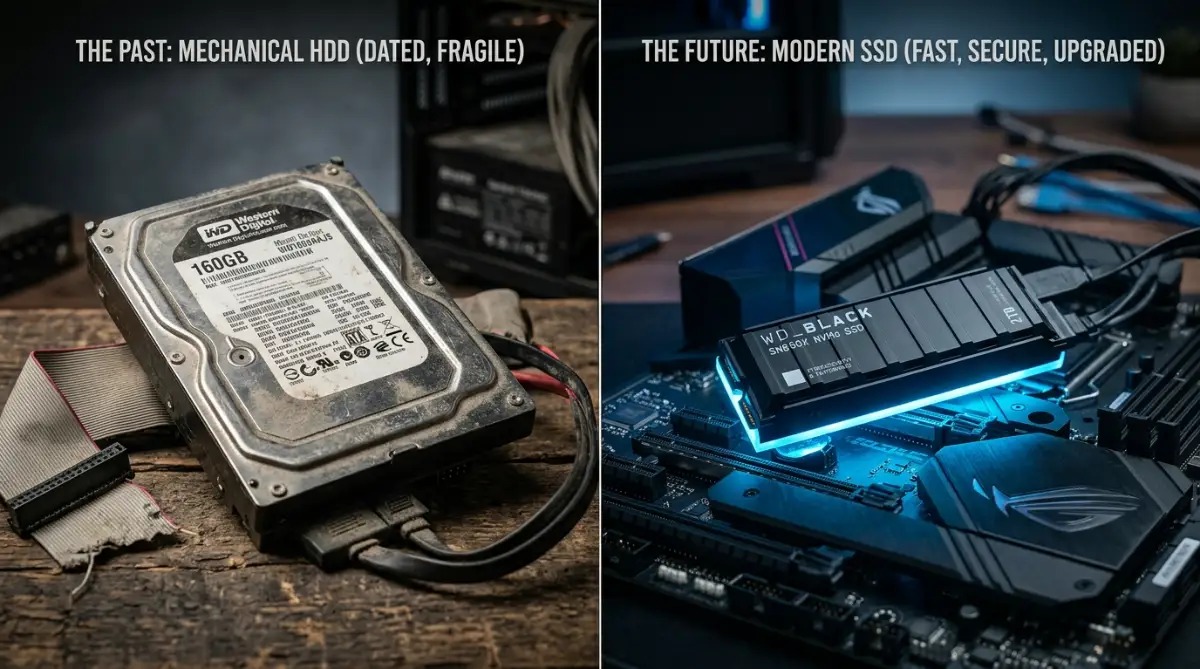
If your drive is failing, you have a great opportunity to upgrade to a Solid State Drive (SSD). Unlike old hard drives, SSDs have no moving parts. They are much faster and can survive being dropped or bumped much better than traditional disks.
Upgrading to an SSD is often the single best thing you can do for an old laptop. It makes the machine feel brand new and removes the risk of mechanical "clicks" forever. It is like replacing an old, noisy record player with a modern digital music player.
When you move your data to a new SSD, you are also making your computer more secure. Modern storage often works better with encryption and security tools.
Just like using a VPN to encrypt your data on public networks, a healthy SSD ensures your files are physically safe and accessible when you need them most.
Dangerous Traps: What Never to Do with a Dying Drive
💡 Hard Drive Myths vs. Facts
- Myth: Putting a failing hard drive in the freezer fixes it.
- Fact: This is an old trick that usually ruins modern drives with moisture. Never do this!
- Myth: Shaking the laptop helps "unstick" the drive.
- Fact: Shaking it while it's running can cause the head to crash, destroying your data instantly.
- Myth: All failed drives can be fixed with software.
- Fact: If the parts inside are physically broken, no software in the world can save it.
When the panic of data loss hits, people often make mistakes that turn a fixable problem into a permanent disaster. One of the biggest mistakes is running a tool called CHKDSK (Check Disk) on a drive that is physically failing.
CHKDSK is designed to fix software errors on a healthy drive. However, on a dying drive, this tool forces the machine to scan every single inch of the disk.
This heavy activity often creates enough heat and friction to kill the drive halfway through the process. Never run a deep scan on a drive that is making noise.
Another trap is opening the hard drive case yourself. You might see videos online where people open their drives to "unstick" the arm. This is a terrible idea for almost everyone.
Even a single speck of dust inside the drive is like a giant boulder to the reading arm. Professional cleanrooms are used for a reason; opening your drive in a normal room will destroy your data instantly.
Avoid the Power-Cycle Loop
We all have the habit of restarting our computers when they act slow. If your drive is dying, every restart is like a punch to the gut for the hardware. The most stressful moment for a hard drive is when it first starts to spin from a dead stop.
If your computer is currently on and you can see your files, do not restart it. Copy your files immediately while the machine is still running.
Once you turn it off, there is no guarantee it will ever turn back on again. Many people lose their files because they thought "one more restart" would fix the lag.
Don't Assume It Is a Software Virus
Many users see their files disappearing or their computer slowing down and blame a virus. They then run a full antivirus scan. This is a huge mistake. A full system scan is one of the most "read-intensive" tasks a computer can do.
If the problem is actually a mechanical failure, the antivirus scan will work the drive to death in a matter of hours. Always check the physical health of your drive before you start running heavy software repairs. It is much better to be safe than to stress a broken part.
This is similar to how people make common mistakes when charging devices overnight. They think they are helping their device, but they are actually causing long-term damage because they don't understand the hardware's limits.
Always learn the physical needs of your computer before trying software "fixes."
The "3-2-1" Strategy for Total Peace of Mind
To never worry about a dying hard drive again, you need a real backup plan. Experts call this the 3-2-1 Rule. This strategy is used by big companies to keep their data safe, and you can use it at home too.
First, keep 3 copies of your data. One is your main copy, and the other two are backups. Second, store these copies on 2 different types of media. For example, use your laptop's internal drive and an external USB drive.
Third, keep 1 copy off-site. This usually means using a cloud storage service like Google Drive or Dropbox. If there is a fire or a theft at your home, your files are still safe in the cloud.
This simple system makes a hard drive failure a small annoyance instead of a life-changing tragedy.
The Real-Life Cost of Professional Recovery
If you ignore the warning signs and your drive dies completely, your only choice is a professional data recovery lab. These labs work in special cleanrooms and use expensive tools to take the drive apart.
The cost for this service usually starts at several hundred dollars and can go up to thousands. Most of the time, insurance does not cover this cost. It is much cheaper to buy a new $50 drive today than to pay $1,000 for a recovery lab next month.
By acting now, you are saving more than just your photos. You are saving your bank account from a massive, unexpected expense. Take a moment to look at your files and ask yourself: "How much would I pay to get these back if they were gone tomorrow?"
Your Digital Action Plan for Today
You now have the knowledge to protect your digital world. Do not wait for the "Click of Death" to happen. Start by checking your drive's health today with a simple S.M.A.R.T. monitoring tool.
If you see any warnings, move your most important files to the cloud or a USB drive immediately. Focus on the things you cannot replace, like family memories and original work.
Once those are safe, you can breathe a sigh of relief.
Technology is meant to help us, but we must take care of the hardware that makes it work. By being proactive and listening to your laptop, you ensure that your digital history stays with you forever.
A Positive Step Toward Hardware Mastery
Learning the signs of a dying hard drive is a great first step in becoming a more tech-savvy person. You are no longer at the mercy of your machine. You can hear its problems and fix them before they cause a crisis.
This sense of control is very rewarding. It allows you to use your laptop with confidence, knowing that you have a plan for any situation. Whether you choose to upgrade to a new SSD or start a regular backup habit, you are making a smart choice for your future.
Start your backup tonight. Even if it is just a few files, it is a win. You are building a habit of safety that will serve you for years to come. Your future self will thank you for the five minutes you spent protecting your data today.
Taking control of my data safety was the best thing I ever did for my peace of mind. It feels so good to know that even if my hardware fails tomorrow, my hard work and memories are safe and sound.
Don't wait for a disaster to happen—start your backup right now and take that weight off your shoulders!
Disclaimer: The information provided in this article is for educational purposes only. Hard drive failure can be unpredictable, and there is no guarantee that data can always be recovered. Always consult with a professional technician if you are unsure about handling computer hardware or if your device contains highly sensitive information.