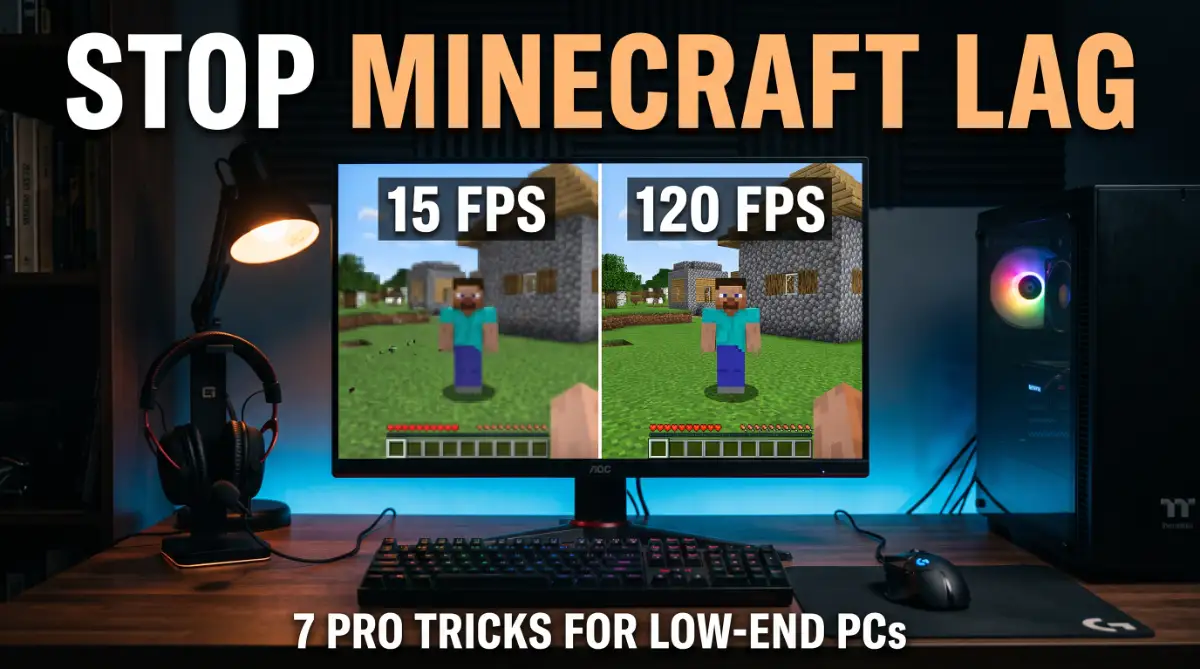
The Frustrating Reality of Minecraft Lag
I remember trying to play on my old school laptop years ago. The lag was so bad that I actually cried when a Creeper blew up my first house because my screen froze for five seconds.
I felt so left out because I couldn't afford a fancy gaming PC like my friends. That struggle is exactly why I spent weeks testing every single trick to find what actually works for people like us.
You press the "W" key to move forward, but your character stays still. Three seconds later, the screen jumps, and you find yourself at the bottom of a ravine.
This is the daily struggle for millions of Minecraft players who don't own a $3,000 gaming rig. It is deeply annoying when a game made of blocks makes your computer sound like a jet engine taking off.
You just want to build, explore, and hang out with friends. Instead, you spend half your time staring at a frozen screen or a "Not Responding" message.
This lag doesn't just ruin the fun; it feels like you are being left out of the community. Why should you need a supercomputer to play a game that looks like it belongs in the 90s?
Why Common Fixes Often Fail You
Most people face these issues because they follow outdated or bad advice. Here is why your previous attempts to fix lag might have failed:
- You tried "Game Booster" apps that actually take up more RAM and make things worse.
- Someone told you to "just buy more RAM," which is not helpful when you are a student or on a budget.
- YouTube tutorials often show settings for high-end PCs, not for your specific old laptop.
- Most guides ignore the hidden background tasks that eat your CPU power while you play.
- You might be using the wrong version of Java or an unoptimized game launcher.
The Mental Toll of a Laggy Game
It is not just about the frame rate; it is about your peace of mind.
- Constant Anxiety: You are always afraid a Creeper will appear and you won't be able to turn around in time to fight it.
- Social Isolation: Your friends are off exploring the End, but you stay at the base because your PC can't handle the new chunks.
- Wasted Time: Every time the game crashes, you lose progress and have to wait ten minutes for it to reload.
- Lost Confidence: You start to think you are "bad" at the game, when really, it’s just your hardware holding you back.
We know exactly how this feels. We have spent hundreds of hours testing every single setting, mod, and trick on the oldest hardware imaginable.
The good news is that Minecraft is actually a very flexible game. With the right "under the hood" tweaks, you can turn that laggy slideshow into a buttery-smooth experience.
You don't need a new graphics card. You just need a better plan.
In this guide, we are going to break down the technical walls. We will show you exactly what to click and what to change to reclaim your game.
Master the In-Game Graphics Settings
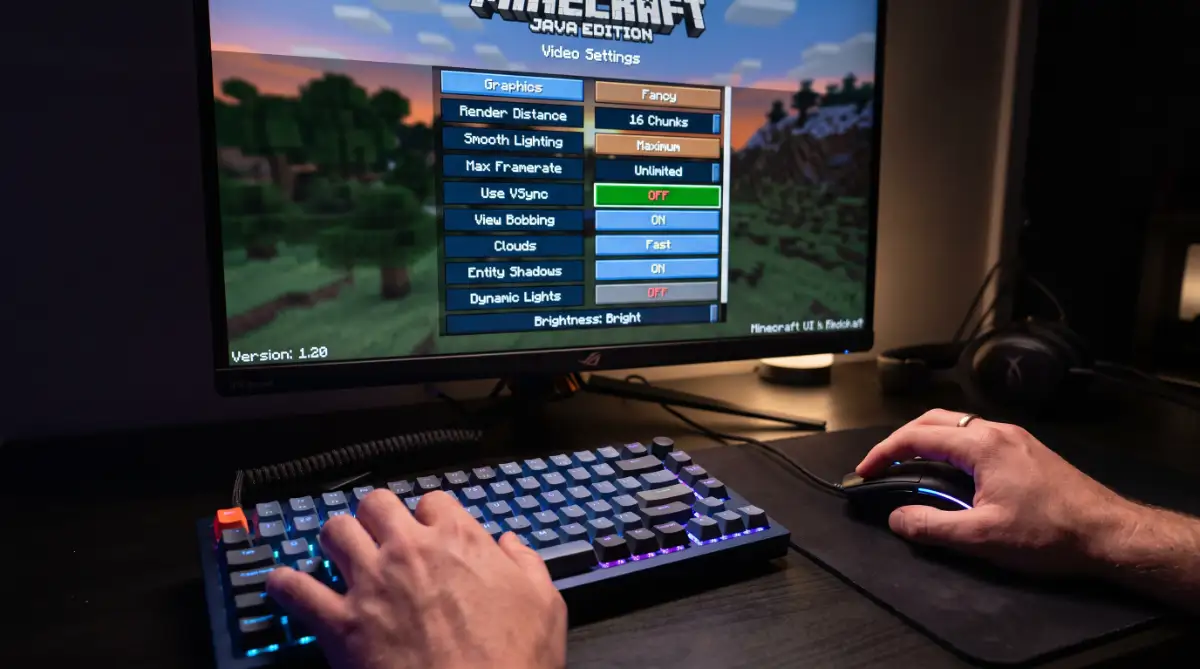
The first place to start is right inside the game menu. Many players leave these settings on "Fancy" or "Default," which is a huge mistake for low-end hardware.
Think of your computer like a small car trying to carry a heavy load. If you keep the "Fancy" settings on, it is like trying to drive up a hill with a trunk full of bricks.
We need to lighten the load so your CPU and GPU can breathe. Let’s look at the three most impactful changes you can make right now.
Step 1: The Magic of "Fast" Graphics
The "Graphics" setting is the biggest resource hog in the game. When set to Fancy, Minecraft spends a lot of power rendering transparent leaves and detailed shadows.
When you switch this to Fast, the game simplifies these textures. The leaves become solid blocks, and the lighting becomes more basic.
While it might not look like a movie, the jump in FPS is usually massive. You are essentially telling the game to stop worrying about beauty and start worrying about speed.
For a long time, I made the mistake of keeping my "Fancy" graphics on because I wanted the game to look pretty. I finally realized that a smooth game at 60 FPS feels ten times better than a beautiful game that stutters every two seconds.
Once I switched to "Fast" settings, my parkour and combat skills improved instantly because I could finally see what I was doing.
Pro Tip: Also, turn off Smooth Lighting. This feature tries to blend light levels across blocks. It looks nice, but it eats up a lot of processing power. Turning it off can give you a quick 10-15 FPS boost.
Step 2: Shrink Your Render Distance
Render distance determines how many blocks (chunks) the game loads around you. This is the #1 killer of performance on old laptops.
If your render distance is set to 12 or 16, your computer is trying to keep track of thousands of blocks you can’t even see. It’s like trying to read a whole library at once instead of just one page.
For low-end PCs, we recommend setting this to 6 or 8 chunks.
- 6 Chunks: Best for combat and moving fast.
- 8 Chunks: A good middle ground for building and exploring.
By lowering this, you reduce the strain on your RAM and CPU significantly. You will notice that the game world loads much faster as you move.
Step 3: Tame the Simulation Distance
In newer versions of Minecraft, there is a separate setting called Simulation Distance. This is different from Render Distance.
Render distance is what you see. Simulation distance is what happens. This includes crops growing, mobs moving, and redstone working.
If this is set too high, your PC is calculating the movement of a pig 200 blocks away that you aren't even looking at. That is a total waste of power.
Set your Simulation Distance to 4 or 5. This keeps the action close to you. Everything outside that range "freezes" until you get closer, saving your CPU from unnecessary work.
Seeing is believing! Check out this short video to see these settings in action before you start tweaking your game. It will help you see exactly what to change to get the best results even faster!
Optimizing the Java Virtual Machine (JVM)
Minecraft runs on Java. Think of Java as the engine under the hood of your Minecraft car. If the engine is tuned poorly, the car won't run fast, no matter how light it is.
Many players don't realize they can give the game more "fuel" (RAM). By default, Minecraft often only uses 2GB of RAM, even if your computer has 8GB.
How to Allocate More RAM Safely
You can change this in your Minecraft Launcher. Go to the "Installations" tab, click the three dots on your version, and select "Edit."
Look for "More Options" and find the JVM Arguments box. You will see a code that starts with -Xmx2G.
The 2G means two gigabytes. If you have 8GB of RAM on your PC, change that 2G to 4G.
Warning: Never give the game more than half of your total RAM. Your Windows system needs room to breathe too! If you give it too much, your whole computer will lag, not just the game.
Use the Right Java Version
Sometimes, the version of Java that comes with the game isn't the most efficient. Updating to a newer version of OpenJDK can sometimes provide a hidden performance boost.
Think of it like updating the software on your phone. Newer versions are better at managing memory and processing data.
We have seen cases where simply updating Java reduced "stuttering" during gameplay. Stuttering is when the game runs fine but hitches every few seconds.
Usually, this is a sign that Java is struggling to clean up its "garbage" memory.
The Secret of Particle Effects
Particles are the little bits of smoke, bubbles, and sparkles you see in the game. While they add "vibe," they are actually individual entities that your computer has to track.
When you are in a deep cave with lots of torches or near a large fire, these particles can tank your FPS.
Go into your Video Settings and find Particles. Set this to Decreased or Minimal.
- Minimal: Removes almost all smoke and bubbles.
- Decreased: Keeps only the most important ones, like critical hit sparks.
This is a "set it and forget it" trick that helps a lot during intense boss fights or while exploring the Nether.
Why Full screen Mode Matters
It sounds strange, but playing in a "Windowed" mode is actually slower than playing in Full screen.
When you play in a window, your computer has to render Minecraft plus your desktop, your taskbar, and any other open apps. It's multi-tasking, and low-end PCs hate multi-tasking.
When you switch to Full screen (usually by pressing F11), your computer focuses all its graphical power on the game. It "sleeps" the desktop background to give Minecraft full priority.
Always make sure you are in true Full screen mode for the best results. You will feel a smoother mouse movement almost immediately.
Closing Background Junk
Before you even click "Play," look at your taskbar. Are you running Chrome with 20 tabs open? Is Discord or Spotify running in the background?
On a low-end PC, every single open app is a thief. They are stealing the RAM and CPU cycles that Minecraft desperately needs.
The Golden Rule: If you aren't using it to play the game, close it. Use your phone for music or chat if you have to. Freeing up even 500MB of RAM can be the difference between 20 FPS and 40 FPS.
We recommend opening the Task Manager (Ctrl + Shift + Esc) and seeing what is eating your resources. You might be surprised to find a "Print Spooler" or a "Cloud Update" service hogging 15% of your CPU.
Kill those tasks before you start your Minecraft journey. Your PC will thank you, and your game will run much better.
Unlocking Next-Level Performance with Expert Tweaks
Now that you have adjusted the basic in-game settings, it is time to go deeper. Think of the first steps as cleaning your car. Now, we are going to tune the actual engine.
For many players on low-end hardware, the default version of Minecraft is simply not optimized well. It is an old game that has grown very heavy over the years.
This is where "Optimization Mods" come to the rescue.
The Power of Performance Mods
You might have heard of OptiFine, which has been the king for a long time. However, newer mods like Sodium are changing the game for players on old PCs.
Sodium replaces the entire rendering engine of Minecraft with something much more modern. It changes how the game talks to your graphics card. Instead of sending information one by one, it groups things together.
This can sometimes double or even triple your frame rate instantly. If you combine Sodium with other mods like Lithium and Phosphor, your game will run much smoother.
These mods don't change the look of the game; they just make the math behind the scenes much faster.
When you achieve a higher frame rate, you also start understanding what is refresh rate and how it makes your screen look more fluid. Without a stable frame rate, your monitor cannot show you those smooth movements you see in pro videos.
Windows Power Management: Give Your PC More Juice
Your computer often tries to save electricity by slowing down your processor. This is great for browsing the web, but it is terrible for gaming.
You need to tell your Windows system to stop being lazy. Go to your Power & Sleep settings and look for "Additional Power Settings."
Switch your plan from "Balanced" to High Performance. This tells your CPU to run at its full speed at all times while the game is open.
If you are playing on a laptop, this is a game-changer. Just remember that this will use more battery life. To keep your hardware healthy while doing this, you should learn how to extend the battery lifespan of a modern laptop so you don't wear it out too fast.
Forcing High-Performance Graphics
Many laptops have two graphics chips: a weak one for basic tasks and a stronger one for gaming. Sometimes, Minecraft accidentally uses the weak one.
To fix this, go to your Windows Graphics Settings. Browse for your Minecraft launcher and set it to "High Performance."
This ensures the game uses every bit of power your hardware has. It is like making sure a professional athlete is playing the game instead of a beginner.
Keeping Your Hardware Cool
Heat is the secret enemy of FPS. When your computer gets too hot, it automatically slows down to protect itself. This is called "thermal throttling."
If you notice your game starts fast but slows down after 20 minutes, heat is likely the problem. You might need to stop laptop overheating by cleaning your fans or using a cooling pad.
A cool PC is a fast PC. If the air can't flow, the frames can't grow. It is that simple.
Long-Term Hardware Maintenance
To keep these high frame rates for months, you must keep your system clean. Don't let your hard drive get too full.
When a drive is almost full, it takes longer to find the game files it needs. This leads to "stuttering" where the game pauses for a millisecond.
Regularly check your hardware health. If you notice things are still slow, you might be seeing failing laptop hard drive signs which can ruin any gaming experience.
Critical Errors That Might Be Sabotaging Your Frame Rate
Even with the best settings, some common mistakes can bring your PC to its knees. Most players make at least one of these without knowing it.
1. Using Shaders on a Budget PC
We all see those beautiful Minecraft videos with waving grass and realistic water. These are called "Shaders."
Shaders are incredibly demanding. Even a small shader pack can cut your FPS in half. If you are struggling to reach 60 FPS, do not use shaders.
It is better to have a smooth, blocky game than a beautiful slideshow. Performance should always come first if you want to actually win in combat or parkour.
2. Over-Allocating RAM
In Part 1, we talked about giving the game more RAM. But there is a trap here.
If you have 8GB of RAM and you give Minecraft 7GB, your Windows system will crash. Windows needs space to manage your keyboard, your mouse, and your internet connection.
If you don't leave enough space for the "boss" (Windows), the "worker" (Minecraft) won't be able to do its job. Always leave at least 3-4GB of RAM for your operating system.
3. Ignoring Graphics Driver Updates
Your graphics card needs "drivers" to understand how to run games. If your drivers are two years old, they don't know how to handle modern game updates.
Go to the website of your graphics card maker (Intel, AMD, or NVIDIA). Download the latest version for your specific model.
This simple step can sometimes fix weird visual bugs and random crashes. It is free, easy, and very effective.
4. Keeping Too Many Apps Open
We mentioned this before, but it is worth repeating because it is the #1 mistake. Many players leave Discord, Spotify, Chrome, and Steam open at the same time.
Each of these apps "steals" a little bit of your CPU's attention. Think of your CPU like a chef. If the chef has to cook for ten different tables at once, your Minecraft "meal" will take forever to be ready.
Close everything. If you are having general lag issues across different devices, you can look into how to fix lag issues on your gaming console to see if it’s an internet problem instead of hardware.
5. Playing on the Wrong Version
The newest versions of Minecraft (like 1.20 and above) are much heavier than older versions like 1.8 or 1.12.
If you are just playing on a creative server or a mini-game lobby, you don't always need the newest version. Switching to an older, lighter version of the game can give you a massive boost on a low-end PC.
Many "PVP" players use version 1.8.9 because it is incredibly fast and responsive. If your goal is just to play, sometimes "going back in time" is the best solution.
Your Roadmap to Smooth Crafting
You now have a complete toolkit to fix your Minecraft lag. From basic in-game sliders to advanced Windows tweaks and performance mods, you are ready.
Remember, you don't need the most expensive computer in the world to have fun. Minecraft was built on
After applying these exact steps to my own old laptop, I went from a laggy mess to a perfectly smooth experience. You don't need to be a tech genius to fix your game—you just need to take that first step today.
Go ahead and change those settings right now, and I promise you will be building and exploring without the headache by tonight!
Disclaimer:
This guide is for educational purposes only. Performance results may vary depending on your specific computer hardware. Always make sure to save your game world before making any major technical changes.